5 Check that the customer does not already exist
Access needed: Customer DB → View to open the page and Create to run the search.
Important: Always search before you add a customer. The system blocks the same name in the same country, but it does not catch the same company written with a slightly different name.
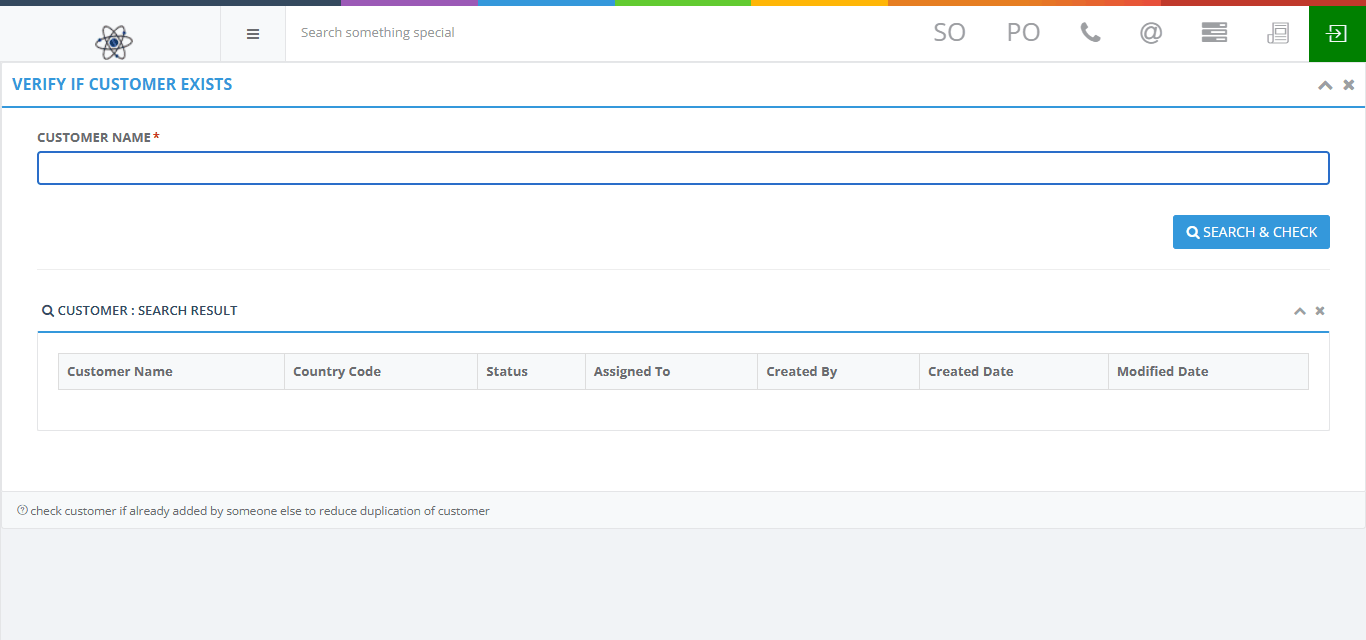
- On the Customer DB list, click + ADD NEW CUSTOMER. The page VERIFY IF CUSTOMER EXISTS opens.
- Type all or part of the company name in CUSTOMER NAME. Part of a name works, for example "Pharma".
- Click SEARCH & CHECK or press Enter.
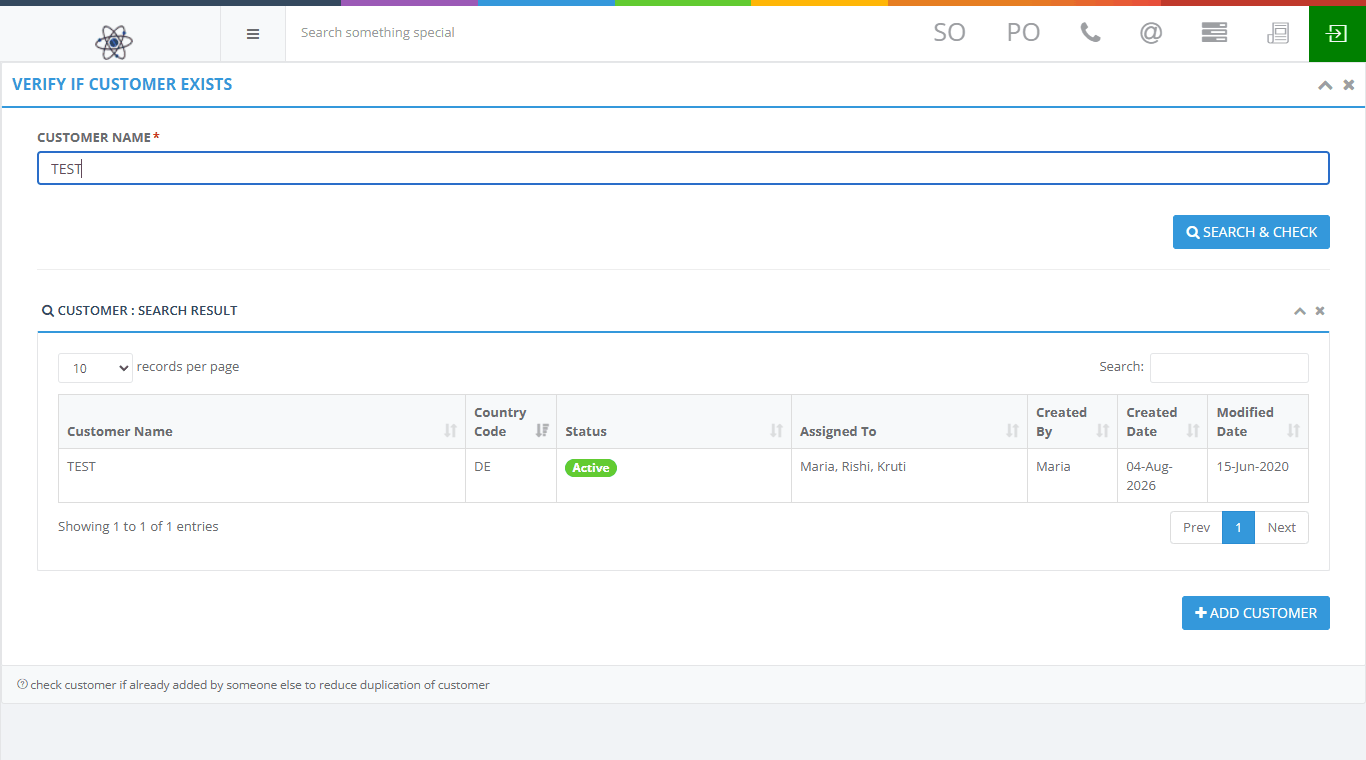
- Read the results. They show the customer name, country, status, who it is assigned to, who created it and the dates.
- If the customer is already listed, stop. Use that record.
- If the customer is not listed, click ADD CUSTOMER.
Things to know
- The ADD CUSTOMER button shows after every search, even when matches were found. Read the results before you click it.
- The name you typed is not carried to the next page. You will type it again.
- If a result shows a Short Code instead of a company name, that customer belongs to another team. You cannot open it. Ask your administrator.
- The results can be out of date. For the correct owner and dates, check the Customer DB list.