7 Complete the customer's profile
Access needed: Customer DB → Update to open the edit page, Create to save, Delete to remove and access to the customer.
After you save a new customer, its edit page opens by itself. Later, open it by clicking the pencil icon at the start of the customer's row in the list.
The edit page has five parts. Each part has its own SAVE button and saves only that part. Save each one before you move on.
| Part | What it holds |
|---|---|
| 1. Company information | The fields from section 6. |
| 2. Addresses | Invoice, Office and Warehouse addresses. |
| 3. Contacts | The people at the customer. |
| 4. Bank details | The customer's own bank accounts. |
| 5. Regulatory documents | Uploaded licence and compliance files. |
7.1 Edit company information
- Open the edit page and go to part 1. COMPANY INFORMATION.
- Change the fields you need.
- Click SAVE in part 1.
Result: The message "Customer updated successfully!" appears and the page reloads.
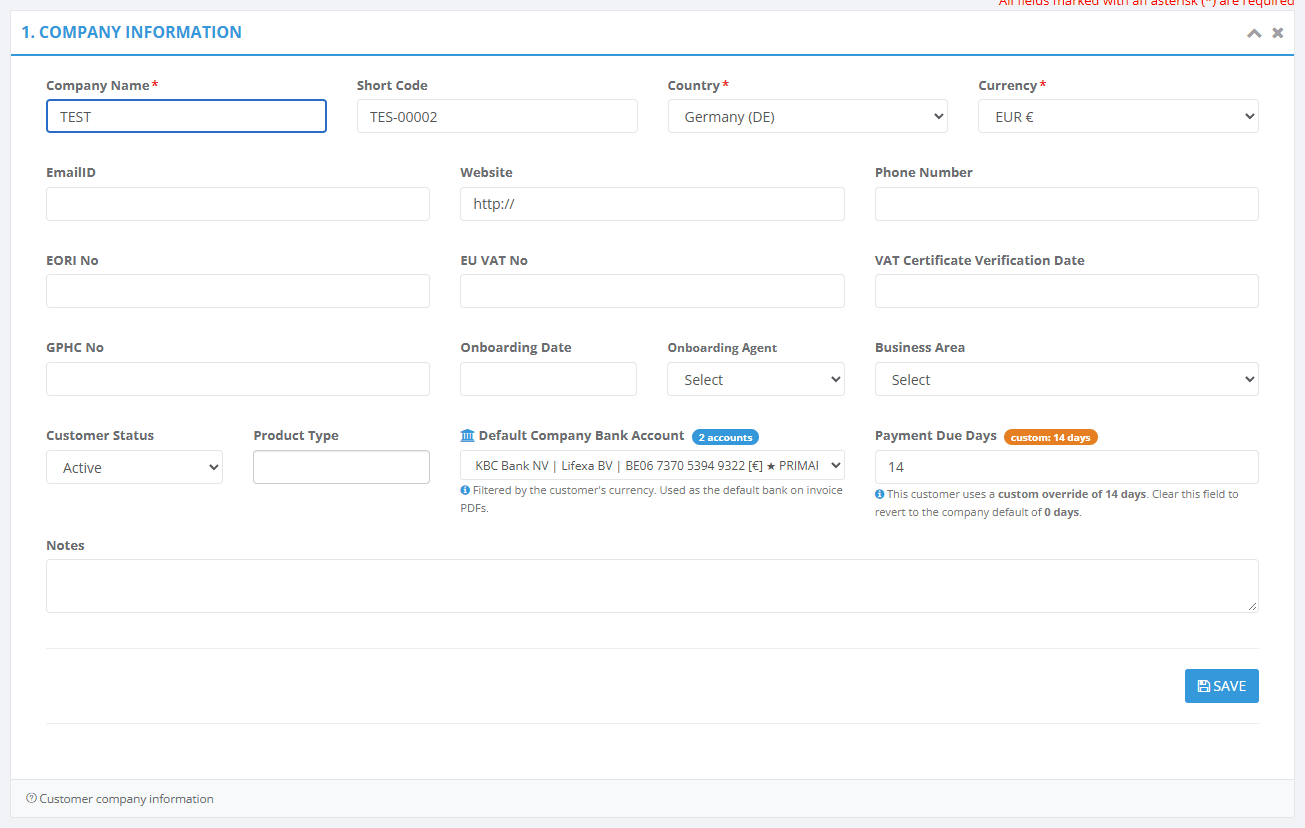
Note: On this page you cannot change the Status (see section 8) or the Owner (your administrator does that). If you change the Country, the Currency does not change by itself, so check it yourself.
7.2 Add an address
- Go to part 2. ADDRESSES.
- Type Address Line 1: street, number, town, postcode and country.
- Tick at least one Address Type: Invoice Address, Office Address or Warehouse Address. One address can have several types.
- For a Warehouse address, type the WDA No. and, if you have it, the URL of the licence.
- Click SAVE.
Result: "Address added/updated Successfully" appears. The address is listed under the tab for each type you ticked.
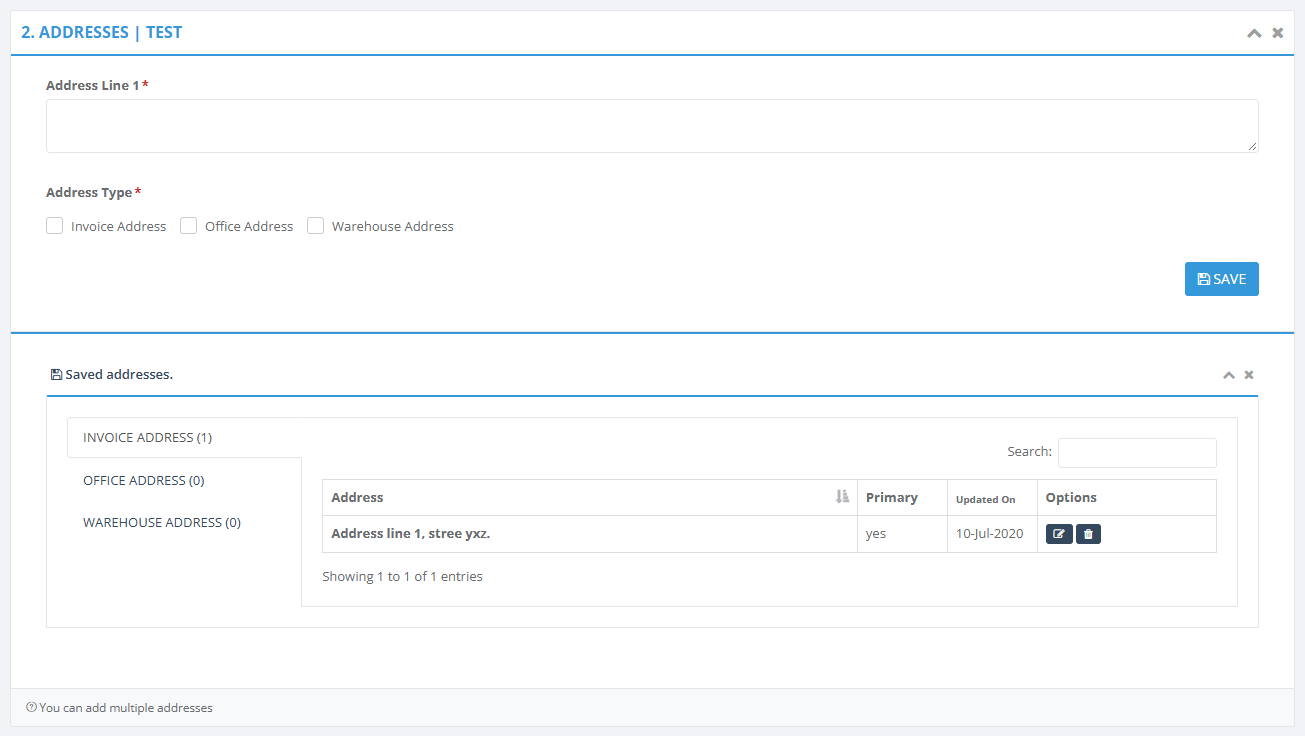
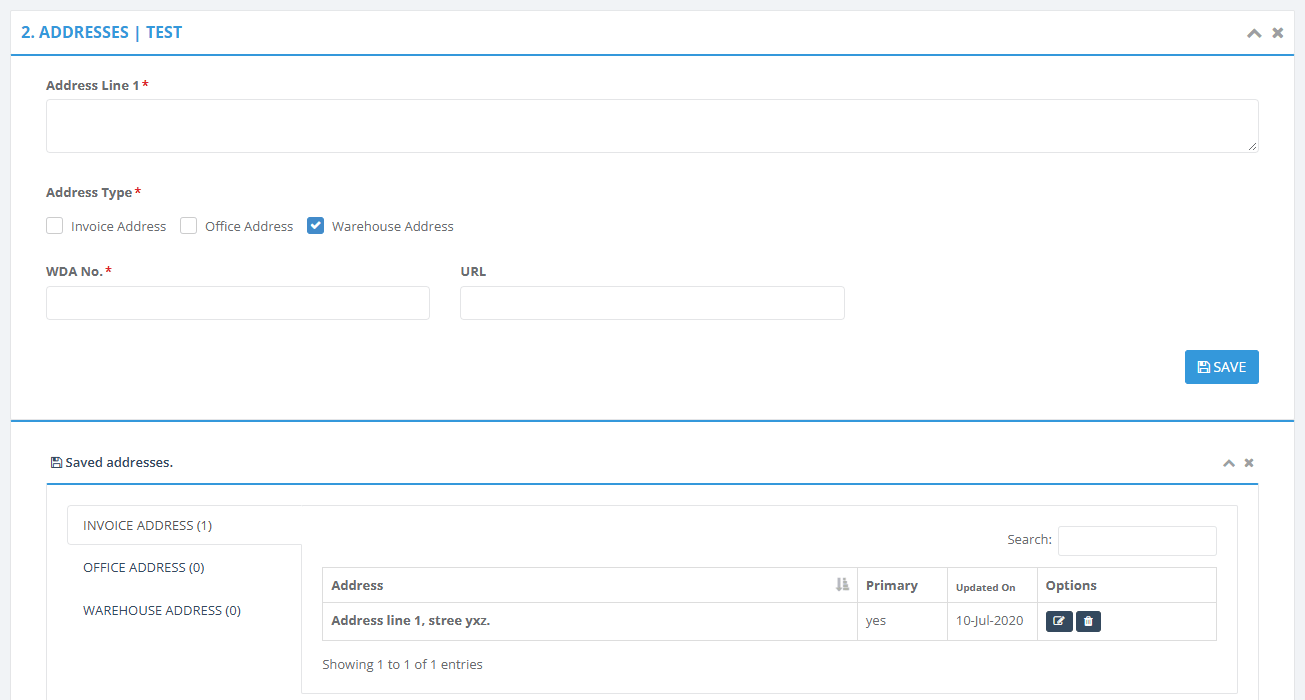
| Field | Required | What to enter |
|---|---|---|
| Address Line 1 | Yes | The full address. |
| Address Type | Yes | Tick at least one type. |
| WDA No. | For a warehouse | The warehouse licence number. |
| URL | No | The licence link. Type it without "http://" at the start. |
To edit an address: open its type tab, click the pencil, change the details and click SAVE.
To make an address the primary one: open its type tab and click the tick beside it. The first address of each type becomes primary by itself. The primary warehouse address supplies the WDA No shown in the list.
To remove an address: open its type tab and click the bin. You cannot remove a primary address, so make another one primary first.
Note: You also cannot remove a warehouse address that is linked to a WDA number. Ask your administrator in that case.
7.3 Add a contact
- Go to part 3. CONTACTS.
- Type the First Name. This is the only required field.
- Add the other details you have: Last Name, Designation, Phone Number / Extention, Email Address, Birthday and Anniversary.
- Tick Primary Address if this person is the main contact. Despite the name, this box marks the main contact.
- Click SAVE.
Result: "Contact added/updated successfully" appears. The contact is listed under Saved contacts.
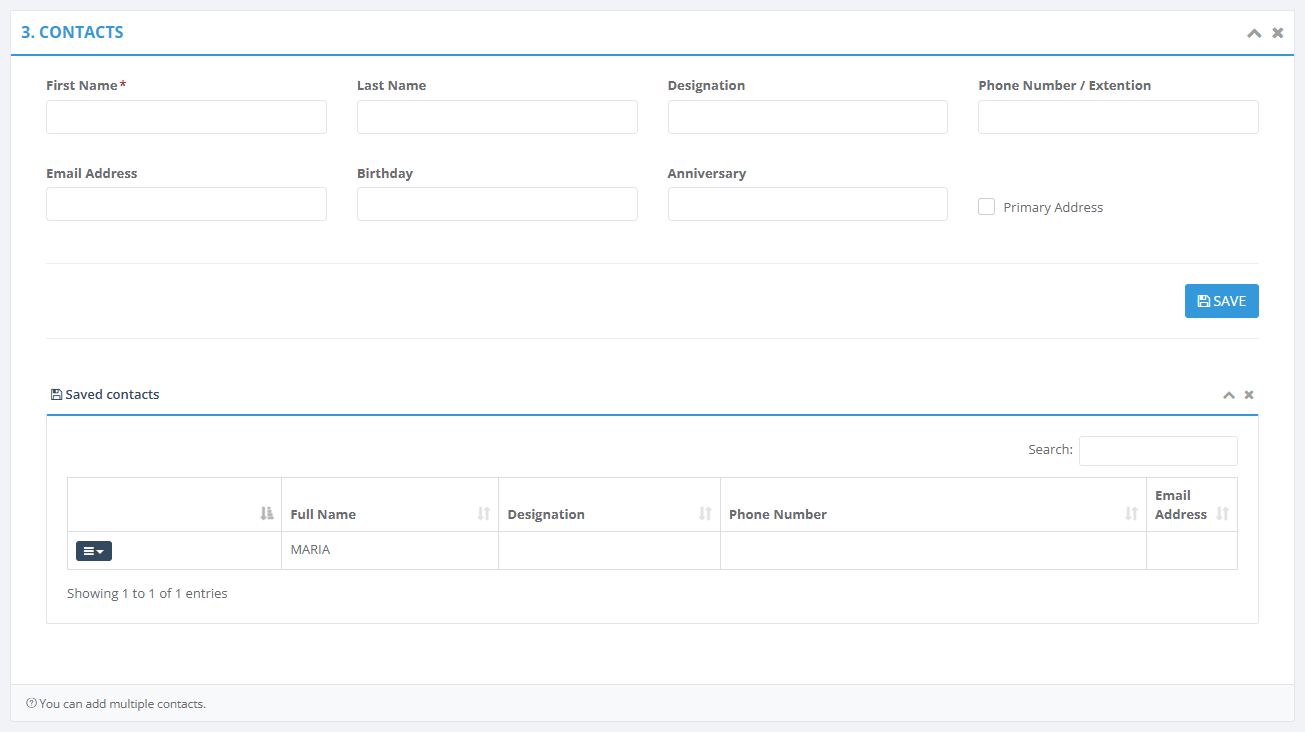
Note: To edit or delete a contact, open the menu at the start of its row and choose the action. A deleted contact is removed for good. After you work on contacts, reload the page before you edit the company information.
7.4 Add bank details
These are the customer's own bank details, not your company's.
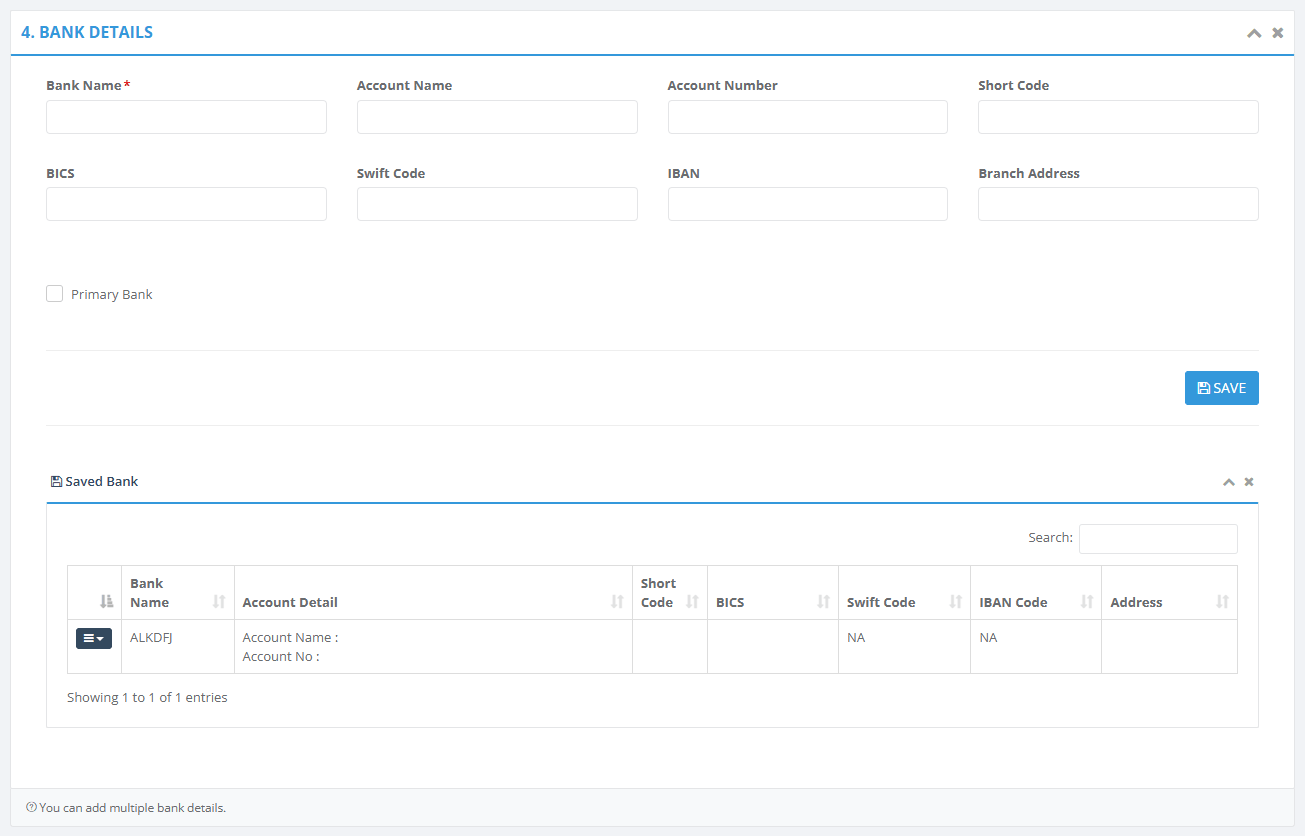
- Go to part 4. BANK DETAILS.
- Type the Bank Name. This is the only required field.
- Add the other details you have: Account Name, Account Number, Short Code (the bank's sort code), BICS, Swift Code, IBAN and Branch Address.
- Tick Primary Bank on the account normally used. Keep only one primary.
- Click SAVE.
Result: "Bank added/updated successfully" appears. The account is listed under Saved Bank.
Note: The system does not check the bank number formats. Check them carefully yourself. To edit or delete a bank, open the menu at the start of its row.
7.5 Upload a regulatory document
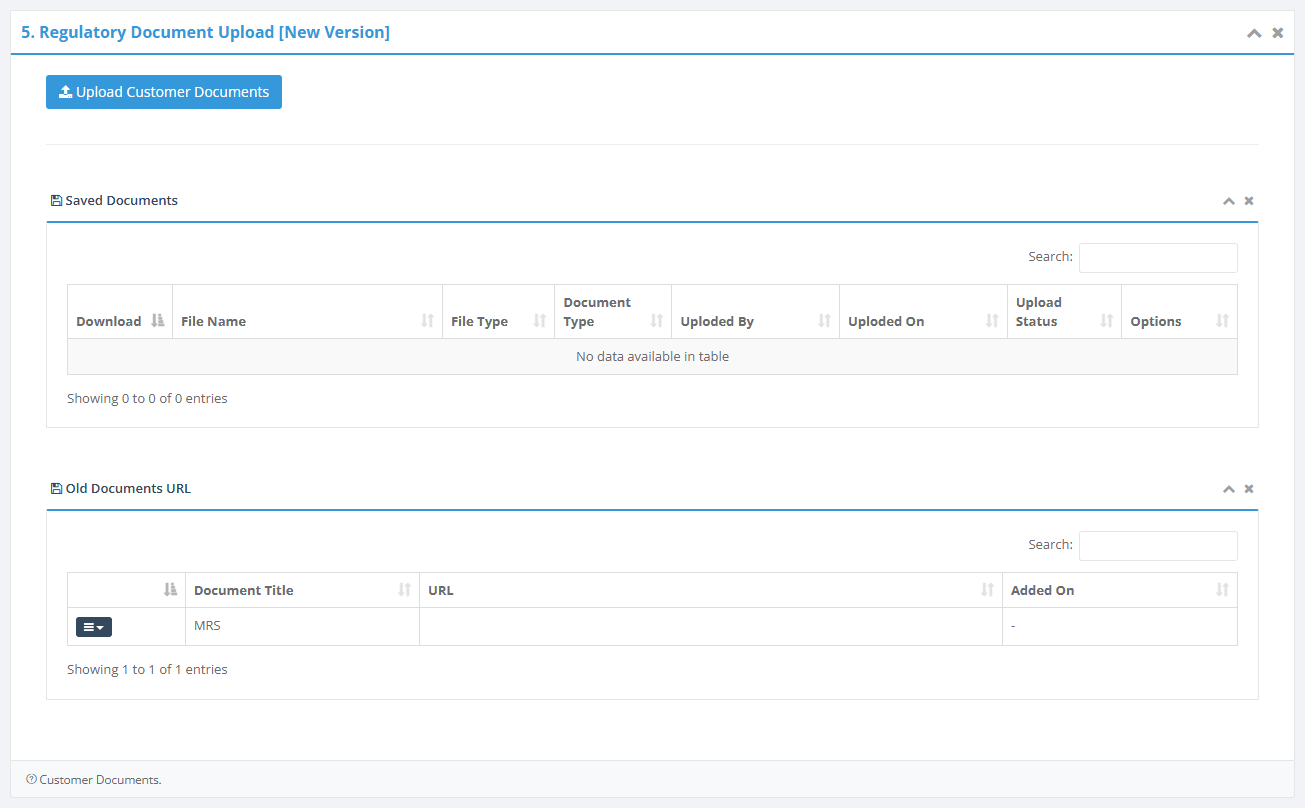
- Go to part 5. Regulatory Document Upload.
- Click Upload Customer Documents. A panel opens on the right.
- Pick the Document Type.
- Click Choose File and select the file.
- Wait for the message "Document uploded successfully" (the spelling is as shown on screen).
There is no SAVE button here. The upload starts as soon as you pick the file. Check that the Upload Status in the list says Success.
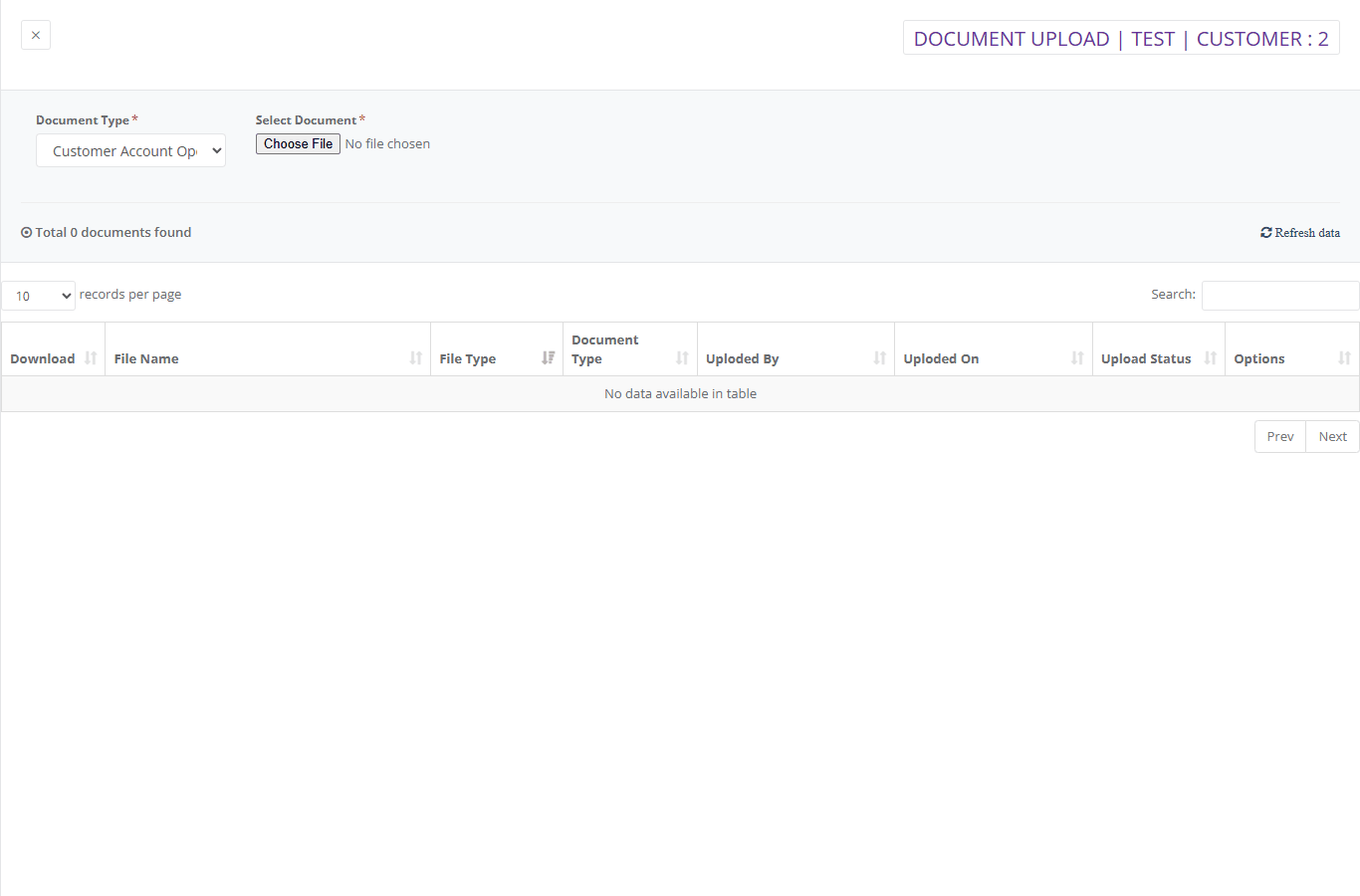
- Download: click Download on the document's row.
- Remove: click the bin under Options. The file is moved to a deleted area, not destroyed.
- Old Documents URL: this list shows links made by earlier versions of the system.