3 Open Customer DB and read the list
Access needed: Customer DB → View.
- Sign in to the ERP.
- In the left menu, click Quick Links → Customer DB. You can also use Sales → Customer DB.
- The CUSTOMER DB page opens. The newest customers are at the top.
- The button + ADD NEW CUSTOMER is at the top right.
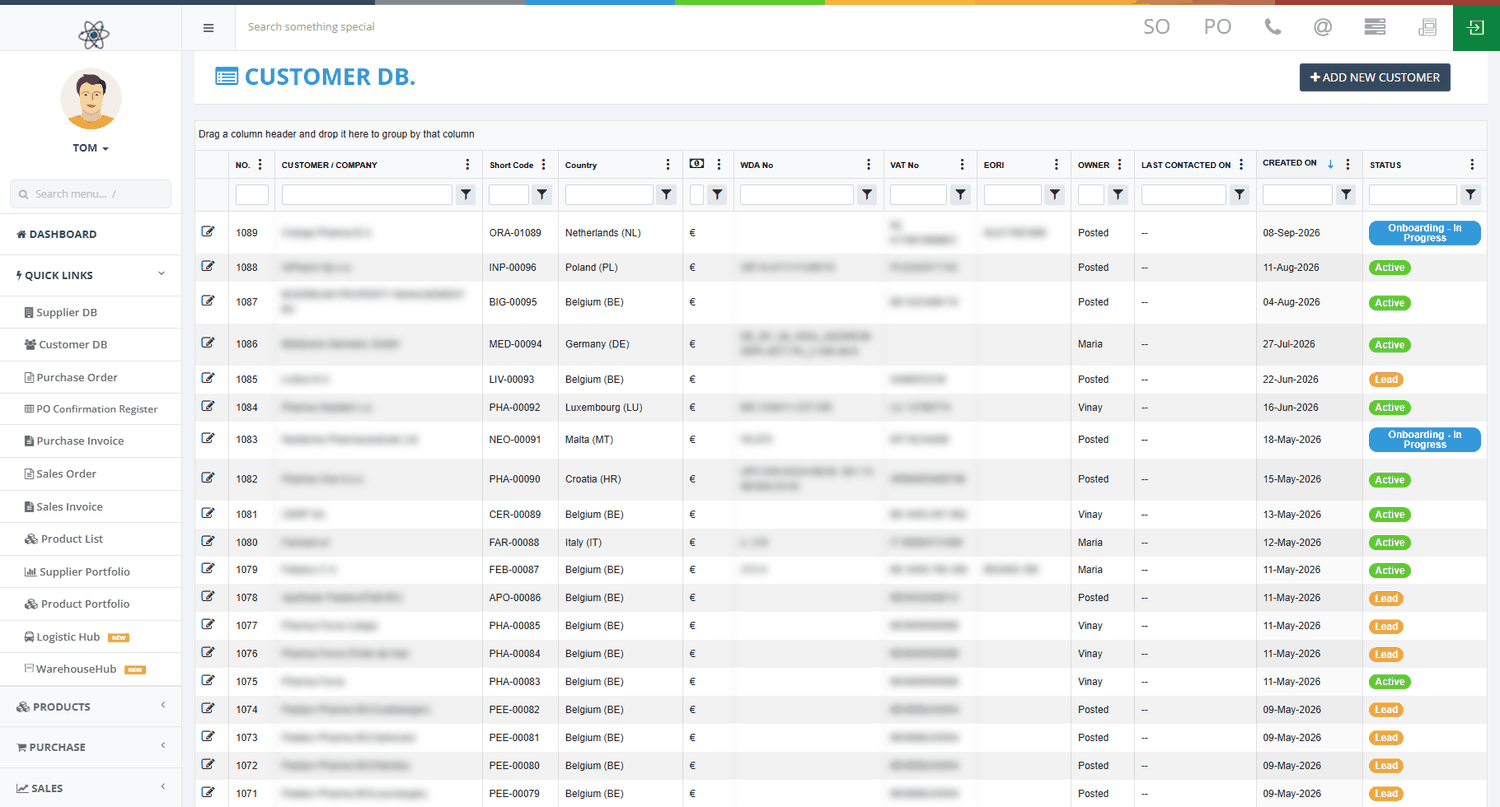
What each column shows
| Column | What it shows |
|---|---|
| Pencil icon | Opens the customer's edit page in a new browser tab. |
| NO. | The customer's record number. |
| CUSTOMER / COMPANY | The company name. |
| Short Code | A short ID for the customer. |
| Country | The country name and its two-letter code. |
| Currency symbol | The currency the customer trades in. |
| WDA No | The licence number of the customer's main warehouse. |
| VAT No / EORI | Tax and customs registration numbers. |
| OWNER | The person responsible for this customer. |
| LAST CONTACTED ON | The date of the last logged call or email. Shows -- if there is none. |
| CREATED ON | The day the customer was added. |
| STATUS | A coloured label such as Lead, Onboarding - In Progress, Active or In-Active. |