6. Add a new supplier
Access needed: Supplier DB → IsCreate. IsView is needed to open the list.
Before you start: Have the registered company name, country and currency ready. Only these three are required.
Fill in the form
The page is ADD NEW SUPPLIER ("Add new supplier to on board"). It has one part, 1. COMPANY INFORMATION. A red note above the form says that all fields marked with an asterisk (*) are required.
- Type the Company Name.
- Pick the Country. The Currency fills in by itself.
- Check the Currency. Change it if you pay the supplier in another currency.
- Fill in any other fields you have (see the table below).
- If an Account Owner box is shown, keep yourself selected or pick a team member.
- Click SAVE.
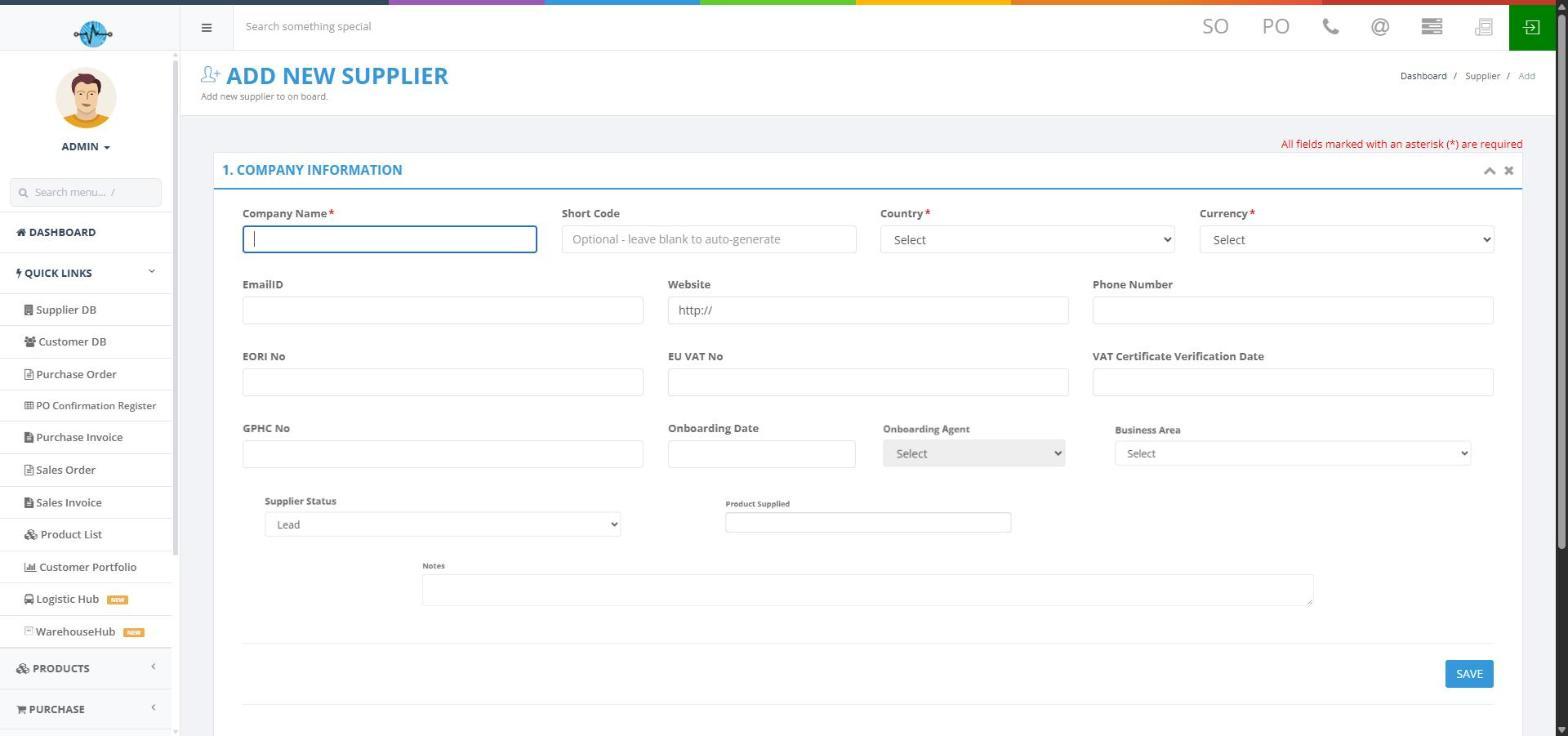
Screenshot 8: Add New Supplier form
Every field on the form
| Field | Required | What to enter |
|---|---|---|
| Company Name | Yes | The registered company name. |
| Short Code | No | Leave it blank and the system creates one. Or type your own code (up to 200 characters) that no other supplier uses. |
| Country | Yes | Pick from the list, from Austria (AT) to USA (US). This also sets the Currency. |
| Currency | Yes | EUR, GBP, INR, NOK or USD. Check the one that was filled in. |
| EmailID | No | The company's general email address. |
| Website | No | The box starts with "http://". Complete it or clear it if there is no website. |
| Phone Number | No | The company's main number. |
| EORI No | No | The customs registration number. |
| EU VAT No | No | The VAT registration number. |
| VAT Certificate Verification Date | No | The date the VAT number was checked. |
| GPHC No | No | The pharmacy registration number, if it applies. |
| Onboarding Date | No | The date onboarding started or finished. |
| Onboarding Agent | No | The colleague who onboarded the supplier. The box is greyed out for most users. |
| Business Area | No | Medication wholesaler, Medical equipment wholesaler, Cosmetic products manufacturer, Cosmetic products wholesaler, Logistic Company or Miscellaneous. |
| Supplier Status | Automatic | Always Lead for a new supplier. You change it later (section 8). |
| Product Supplied | No | The types of products the supplier provides. You can pick more than one. |
| Account Owner | Only if shown | Appears only if your role has Choose Owner When Adding switched on. |
| Notes | No | Free text about the company. |
What happens when you click SAVE
Confirmation message: ______________________________
Page that opens next: ______________________________
The supplier is created as a Lead. Continue with the rest of the profile in section 7. If a check fails, read the message (see section 11), fix the problem and type the details again.