8. Change the status and read the history
A new supplier is a Lead. You move it forward as the relationship grows. Some changes can also happen automatically when Purchase Orders and Purchase Invoices are saved.
Change the status
Access needed: The supplier's side panel and a visible pencil beside the status.
- Open Supplier DB and click the supplier's row.
- Click the pencil beside the status label. The window UPDATE STATUS - SUPPLIER opens.
- Choose a new value in SELECT STATUS.
- Type the REASON FOR CHANGE.
- Click Update Status.
Confirmation message: ______________________________
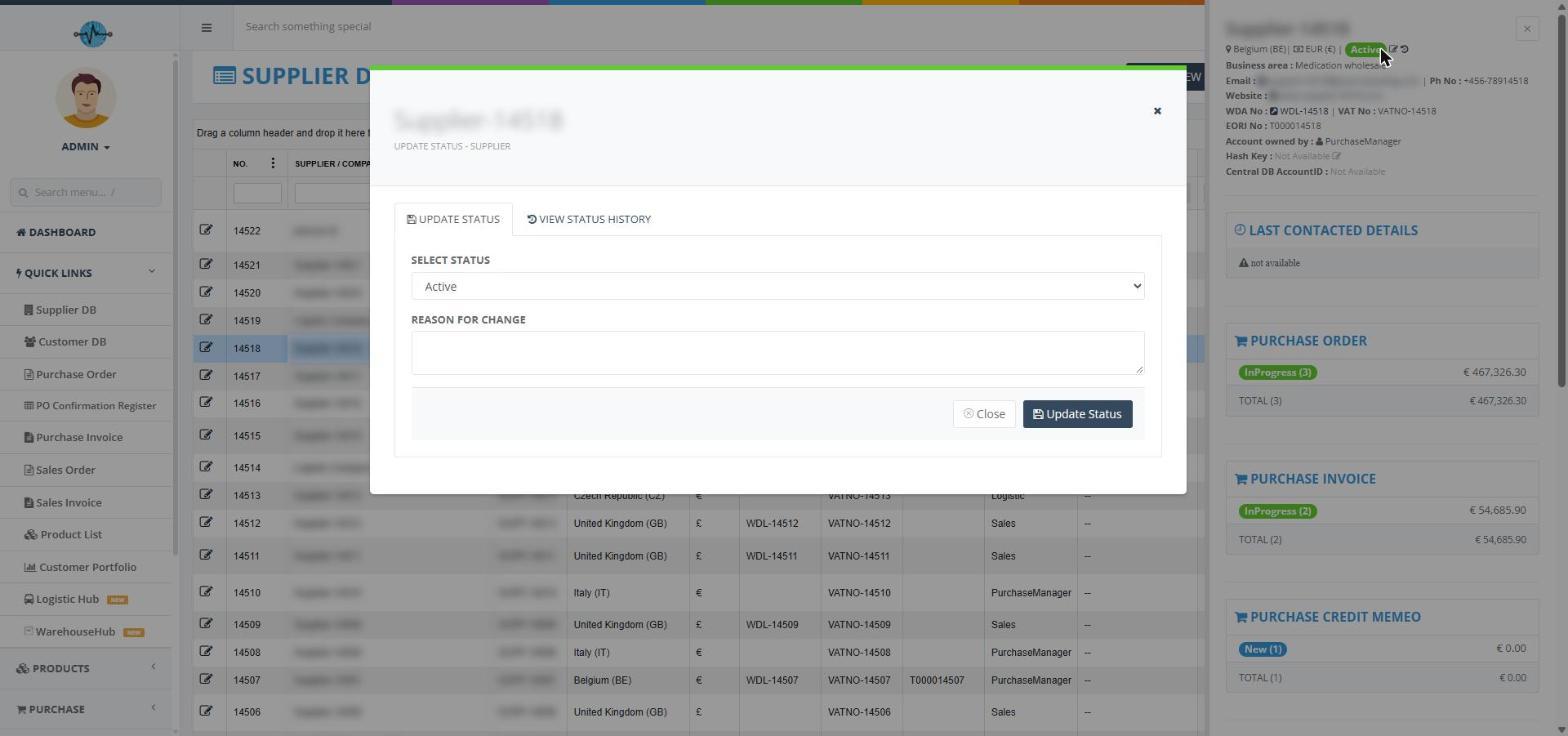
Screenshot 16: The Update Status window
Who can change what: While a supplier is still a Lead, normal users can move it forward. After that, the main administrator changes the status, as with customers. Exact choices offered to normal users: ______________________________
There is no button to delete a supplier. Use a status instead, such as Closed - Not relevant.
What each status means
| Status | Meaning |
|---|---|
| Lead | A new supplier. |
| Lead - In Progress | A lead being worked on. |
| Lead - Manufacturer, Lead - Generic Drug and Supplement, Lead - Future prospect | Leads grouped by type or timing. |
| Onboarding - In Progress | Setup is under way. |
| Onboarding - Complete | Setup is finished. |
| Active | A supplier you trade with. |
| Inactive | Not trading at the moment. |
| Closed - Black Listed | Do not trade with this supplier. |
| Closed - Not relevant | A lead that did not go ahead. |
These are the eleven values in the SELECT STATUS box. Automatic changes after a Purchase Order or Purchase Invoice and when they happen: ______________________________
Read the status history
- Open the supplier's side panel.
- Click the clock beside the status. You can also click VIEW STATUS HISTORY in the Update Status window.
- Read the DATE, FROM, TO, NOTES and User columns.
Viewing the history does not change the supplier. The list is empty if the status has never been changed.
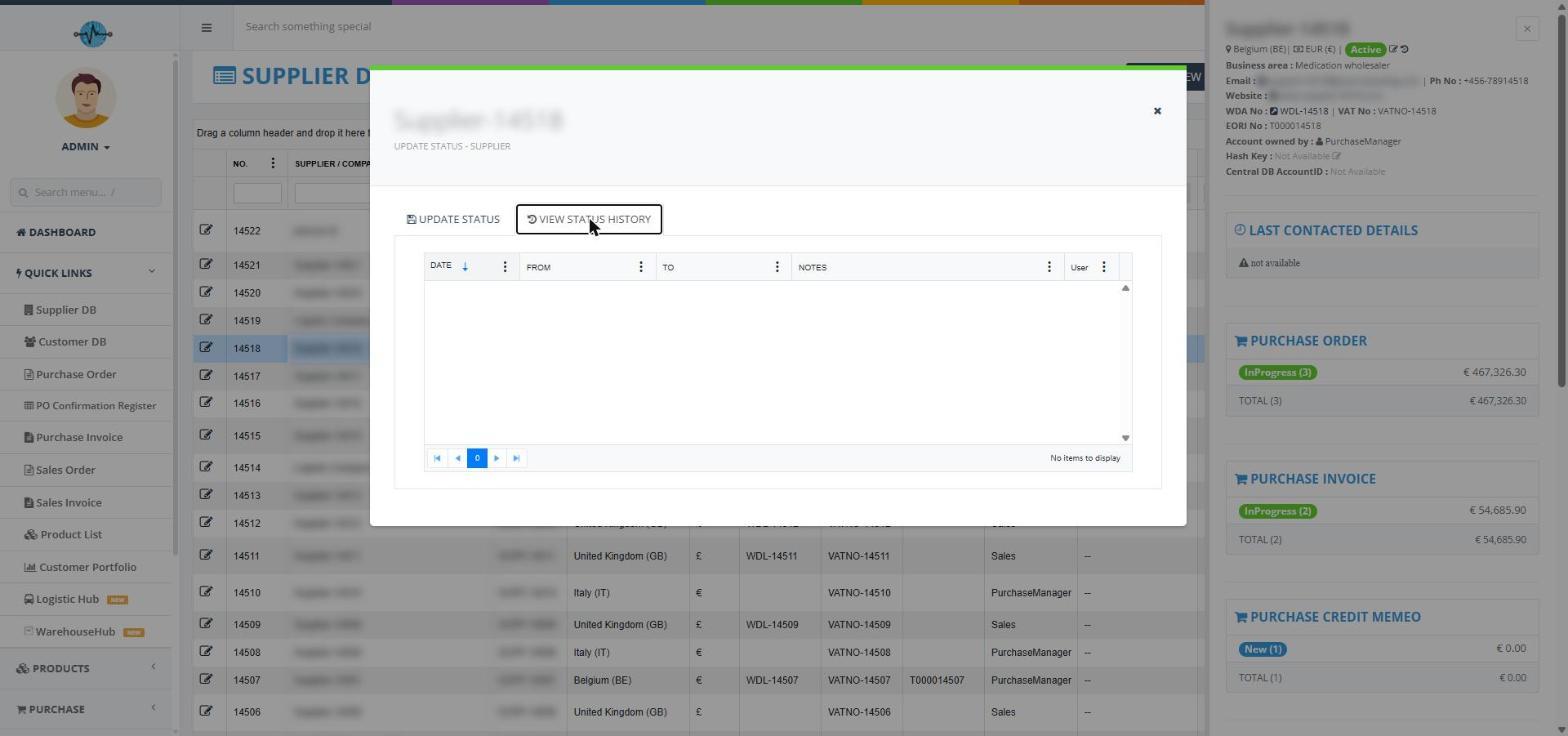
Screenshot 17: The status history list