5. Check that the supplier does not already exist
Access needed: Supplier DB → IsView to open the page. Which permission is needed to run the search: ______________________________
Important: Always search before you add a supplier. A company can be written with a slightly different name, and the system may not catch it.
- On the Supplier DB list, click + ADD NEW SUPPLIER. The page VERIFY IF SUPPLIER EXISTS opens. You can also open Purchase → Add New Supplier.
- Type all or part of the company name in SUPPLIER NAME. Part of a name works, for example "Pharma".
- Click SEARCH & CHECK or press Enter.
- Read the results. They show the supplier name, country code, status, who it is assigned to, who created it and the dates.
- If the supplier is already listed, stop. Use that record.
- If the supplier is not listed, scroll down and click ADD SUPPLIER at the bottom right.
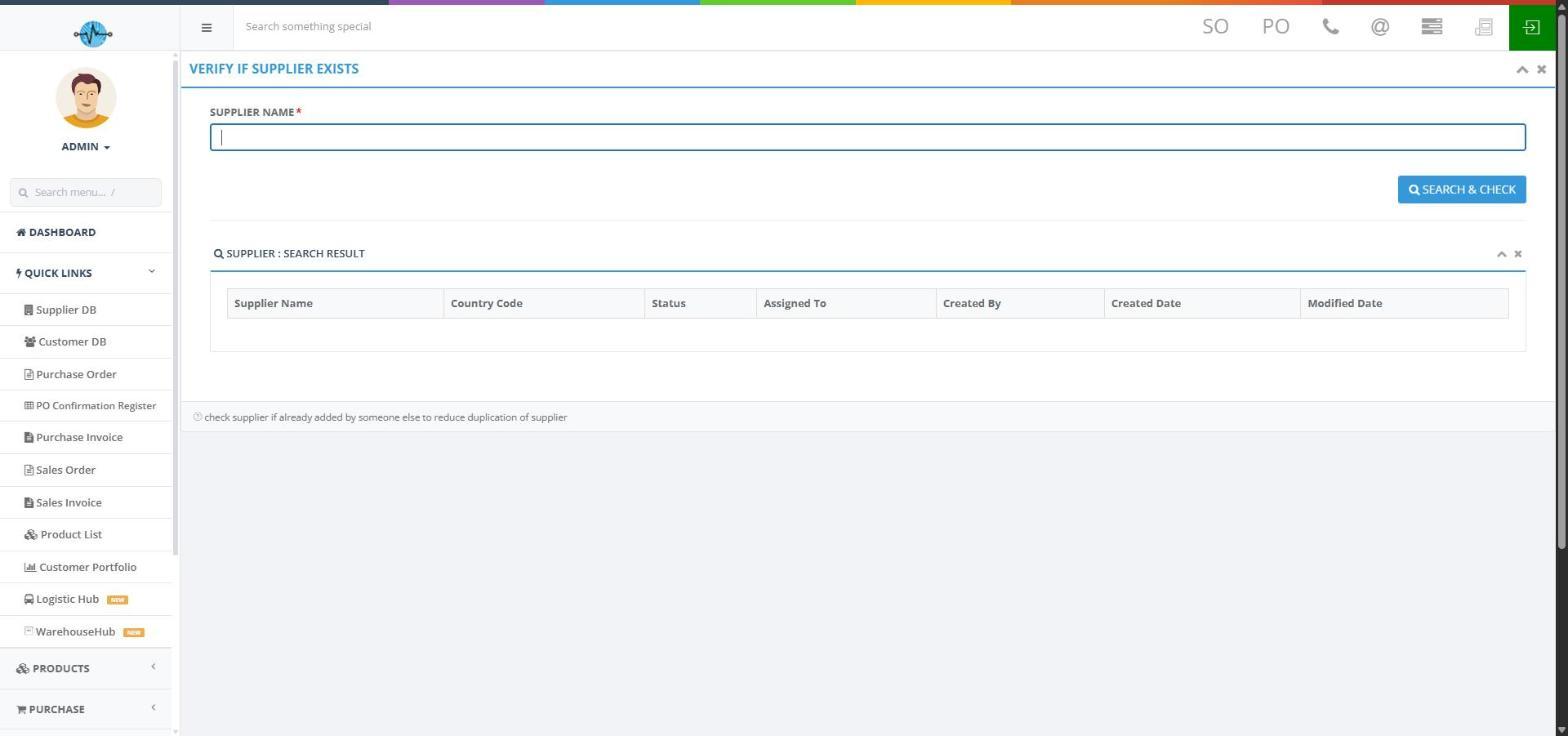
Screenshot 6: Verify if Supplier Exists page
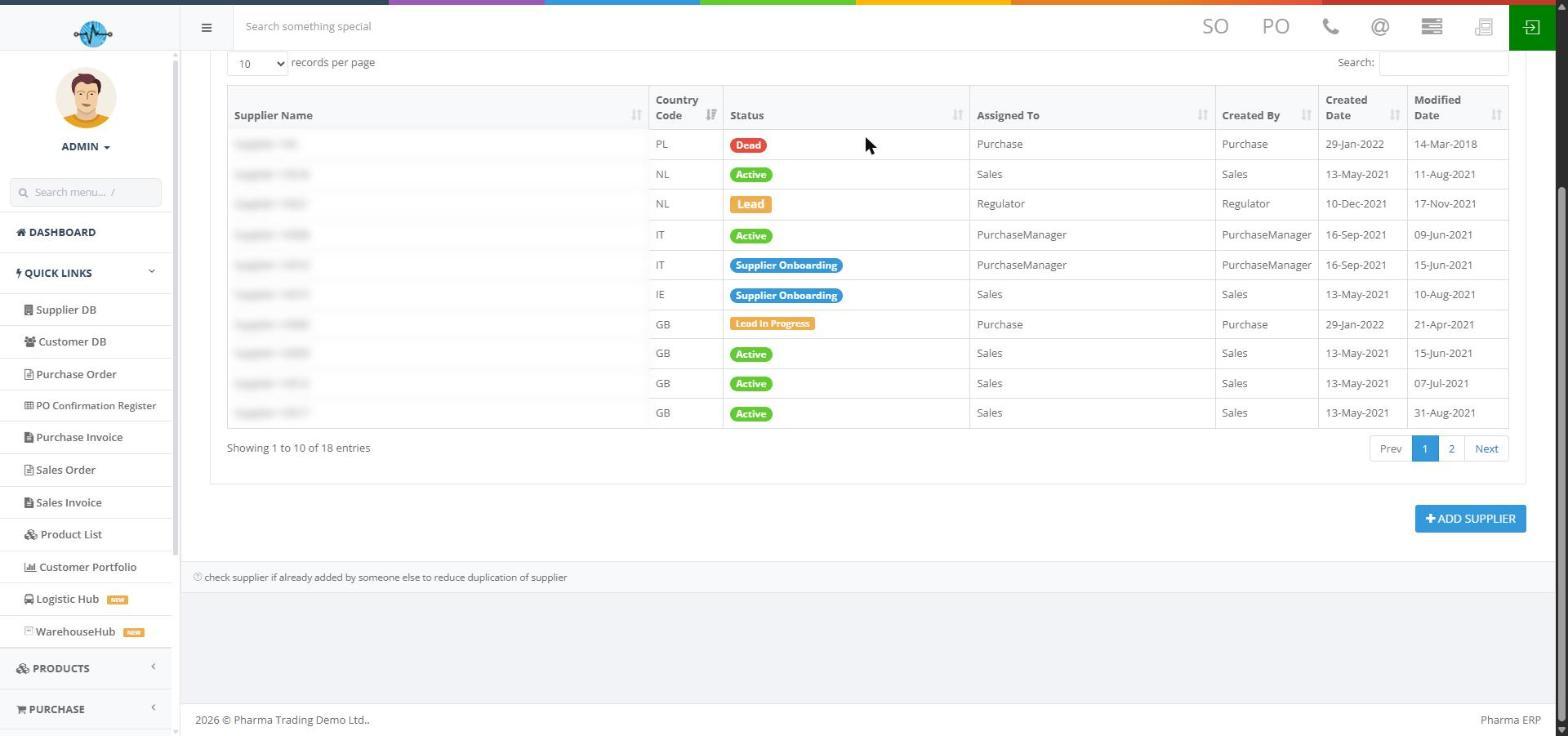
Screenshot 7: Search results and the ADD SUPPLIER button
Things to know
- The results table shows 10 suppliers at a time. Use the page numbers, the records-per-page box or the Search box above the table to look through the matches.
- The ADD SUPPLIER button shows after a search. Read the results before you click it.
- The name you typed is not carried to the next page. You will type it again.
- The Status words here can differ from the list. For example, a supplier shown as Supplier Onboarding here shows as Onboarding - In Progress in Supplier DB. Check the Supplier DB list for the current status.