7. Complete the supplier's profile
Access needed: Supplier DB → IsUpdate to open the edit page, IsCreate to save, IsDelete to remove.
Open the edit page by clicking the pencil icon at the start of the supplier's row in the list. It opens in a new browser tab.
The edit page has five parts. Each part has its own SAVE button and saves only that part. Save each one before you move on.
| Part | What it holds |
|---|---|
| 1. Company information | The fields from section 6. |
| 2. Addresses | Invoice, Office and Warehouse addresses. |
| 3. Contacts | The people at the supplier. |
| 4. Bank details | The supplier's own bank accounts. |
| 5. Regulatory documents | Uploaded licence and compliance files, and links from older versions. |
7.1 Edit company information
- Open the edit page and go to part 1. COMPANY INFORMATION.
- Change the fields you need.
- Click SAVE in part 1.
Confirmation message: ______________________________
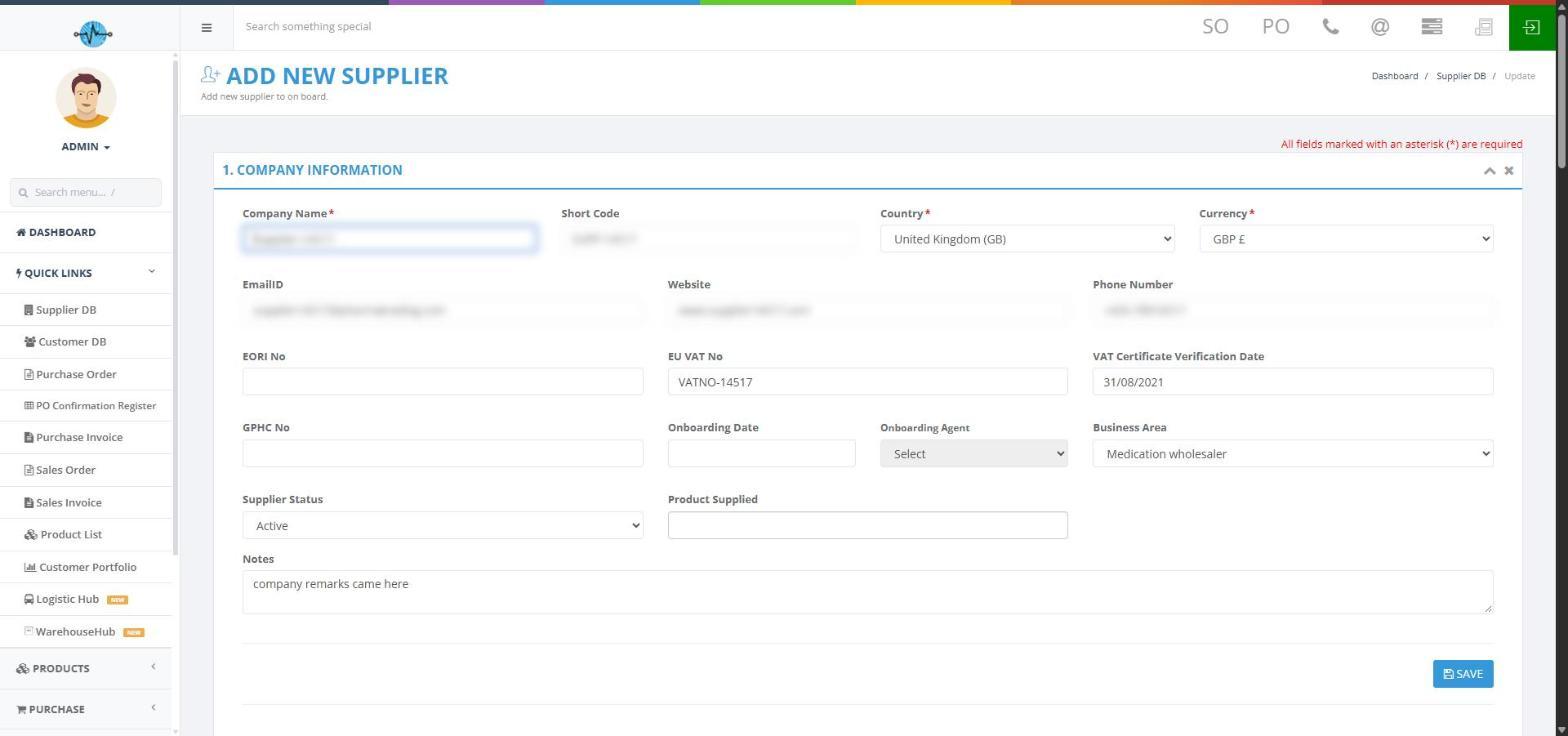
Screenshot 9: Company information on the edit page
Note: The page heading on the edit page still reads ADD NEW SUPPLIER. The filled fields and parts 2 to 5 show that it is the edit page. Supplier Status is changed from the side panel (section 8).
7.2 Add an address
- Go to part 2. ADDRESSES.
- Type Address Line 1: street, number, town, postcode and country.
- Tick at least one Address Type: Invoice Address, Office Address or Warehouse Address. One address can have several types.
- If you tick Warehouse Address, two more boxes appear: WDA No. (required) and URL. Type the licence number and, if you have it, the link to the licence.
- Click SAVE.
Confirmation message: ______________________________
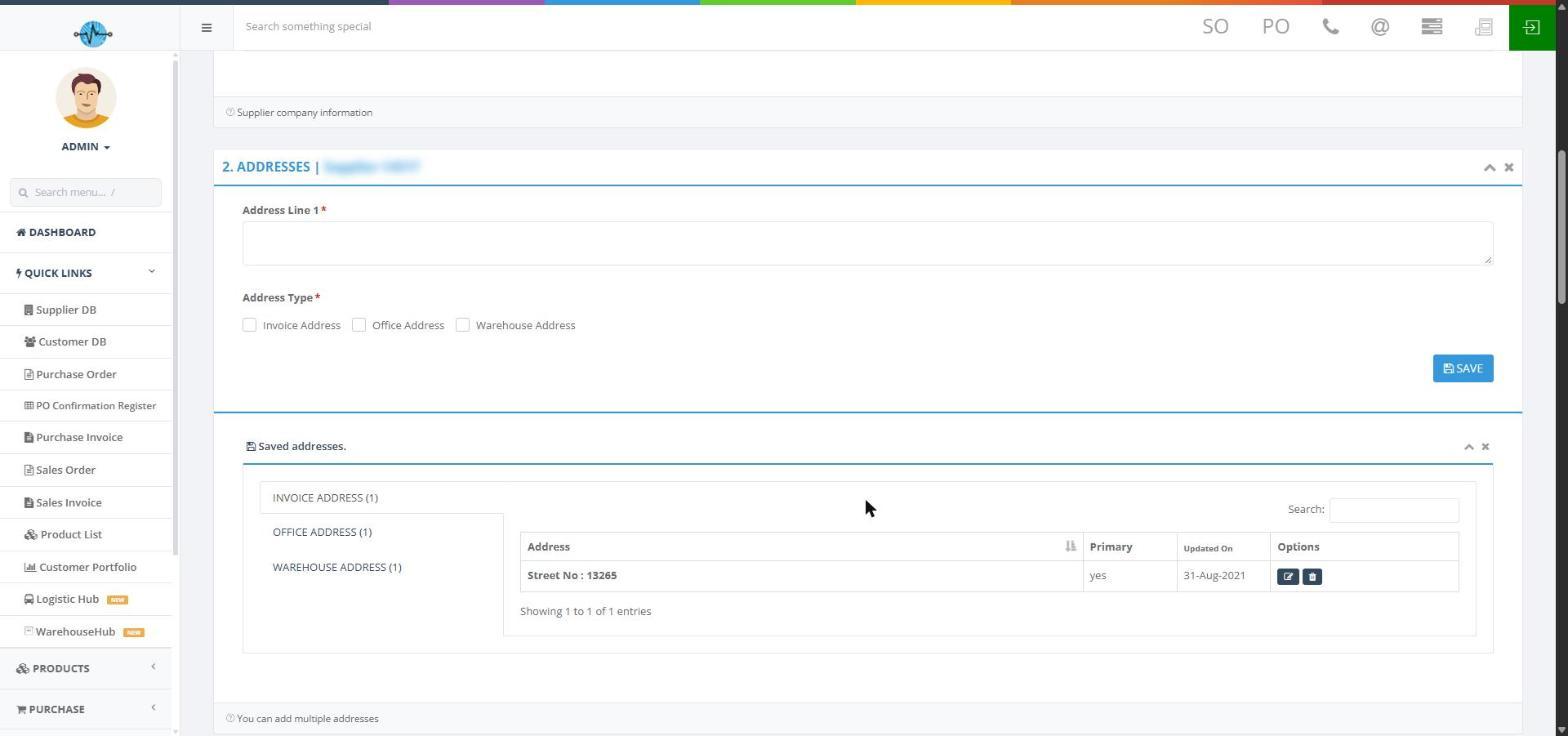
Screenshot 10: Address form and the saved-address tabs
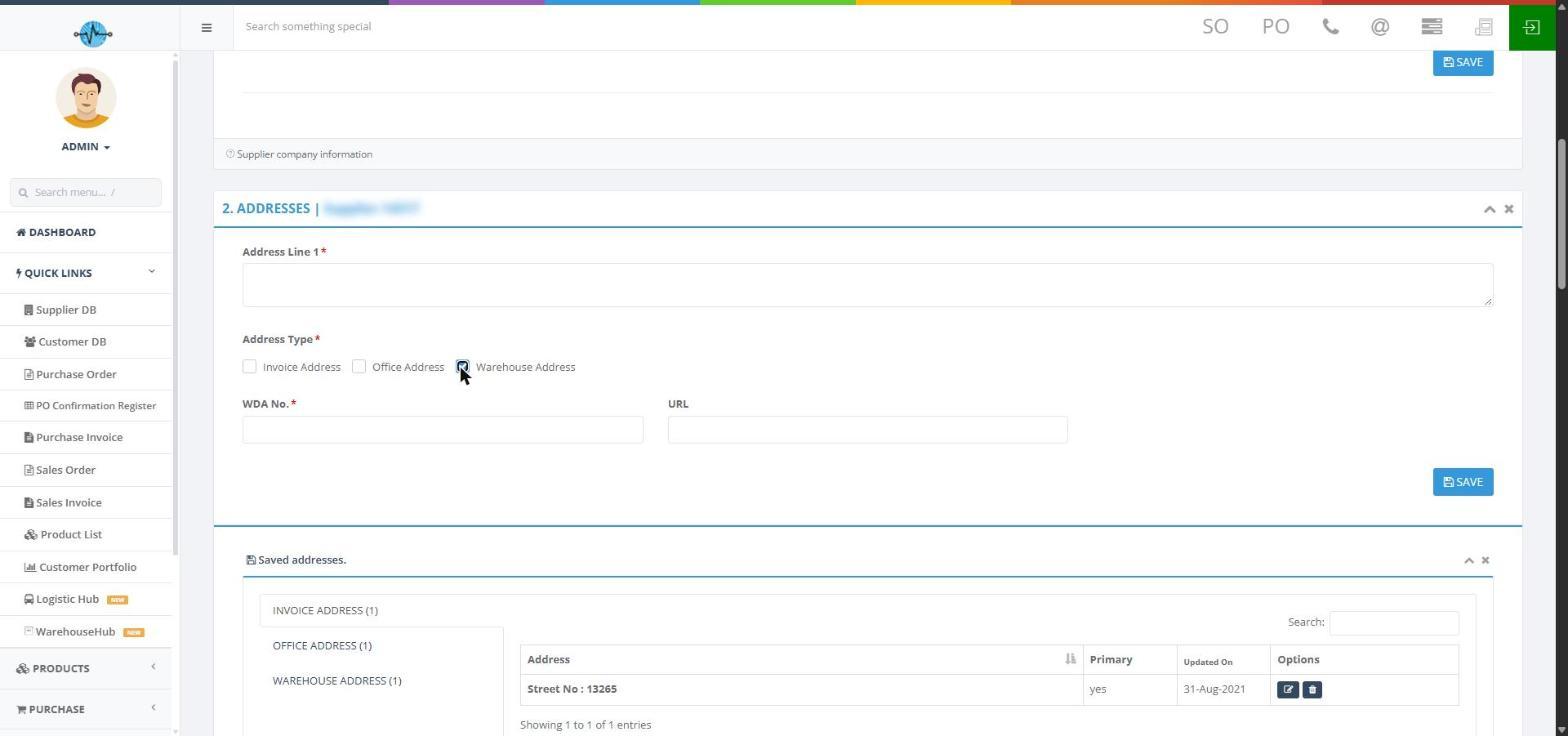
Screenshot 11: Warehouse address with the WDA No. and URL boxes
| Field | Required | What to enter |
|---|---|---|
| Address Line 1 | Yes | The full address. |
| Address Type | Yes | Tick at least one type. |
| WDA No. | For a warehouse | The warehouse licence number. |
| URL | No | The licence link. |
Saved addresses are listed in the box under the form. It has three tabs: INVOICE ADDRESS, OFFICE ADDRESS and WAREHOUSE ADDRESS, each with a count. A table shows the Address, whether it is Primary, the Updated On date and two buttons under Options: the pencil edits the address and the bin removes it.
- To edit an address: open its type tab, click the pencil, change the details and click SAVE.
- To make an address the primary one: the message "Primary address set successfully!" appears when it is done. The control that sets it: ______________________________
- To remove an address: open its type tab and click the bin. Confirmation message: ______________________________
7.3 Add a contact
- Go to part 3. CONTACTS.
- Type the First Name. This is the only required field.
- Add the other details you have: Last Name, Designation, Phone Number / Extention, Email Address, Birthday and Anniversary.
- Tick Primary Contact if this person is the main contact.
- Click SAVE.
Confirmation message: ______________________________
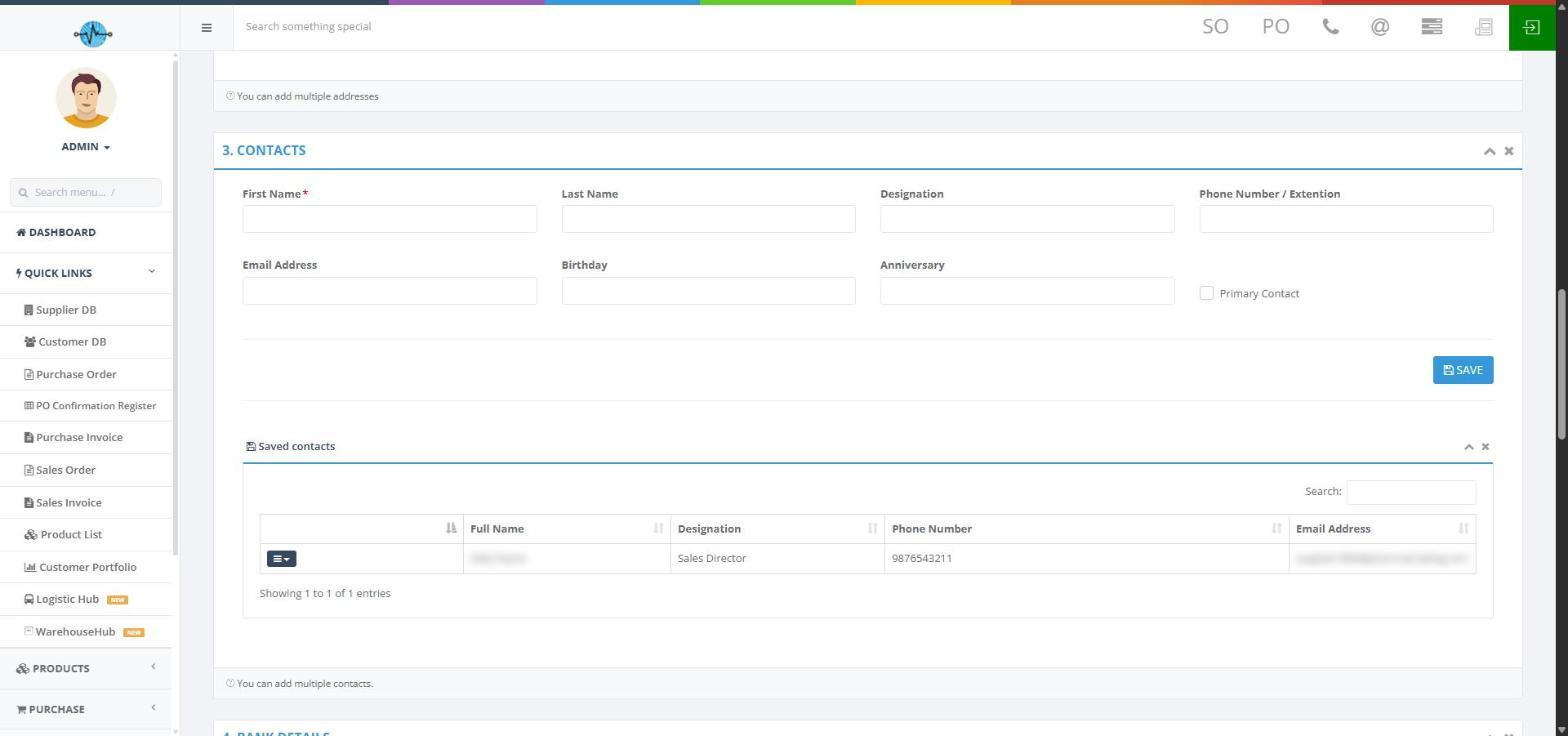
Screenshot 12: Contact form and saved contacts
Saved contacts are listed with Full Name, Designation, Phone Number and Email Address. To edit or delete a contact, click the menu button at the start of its row and choose Edit or Delete. Delete confirmation message: ______________________________
7.4 Add bank details
These are the supplier's own bank details, not your company's.
- Go to part 4. BANK DETAILS.
- Type the Bank Name. This is the only required field.
- Add the other details you have: Account Name, Account Number, Sort Code (the bank's sort code), BICS, Swift Code, IBAN and Branch Address.
- Tick Primary Bank on the account normally used. Keep only one primary.
- Click SAVE.
Confirmation message: ______________________________
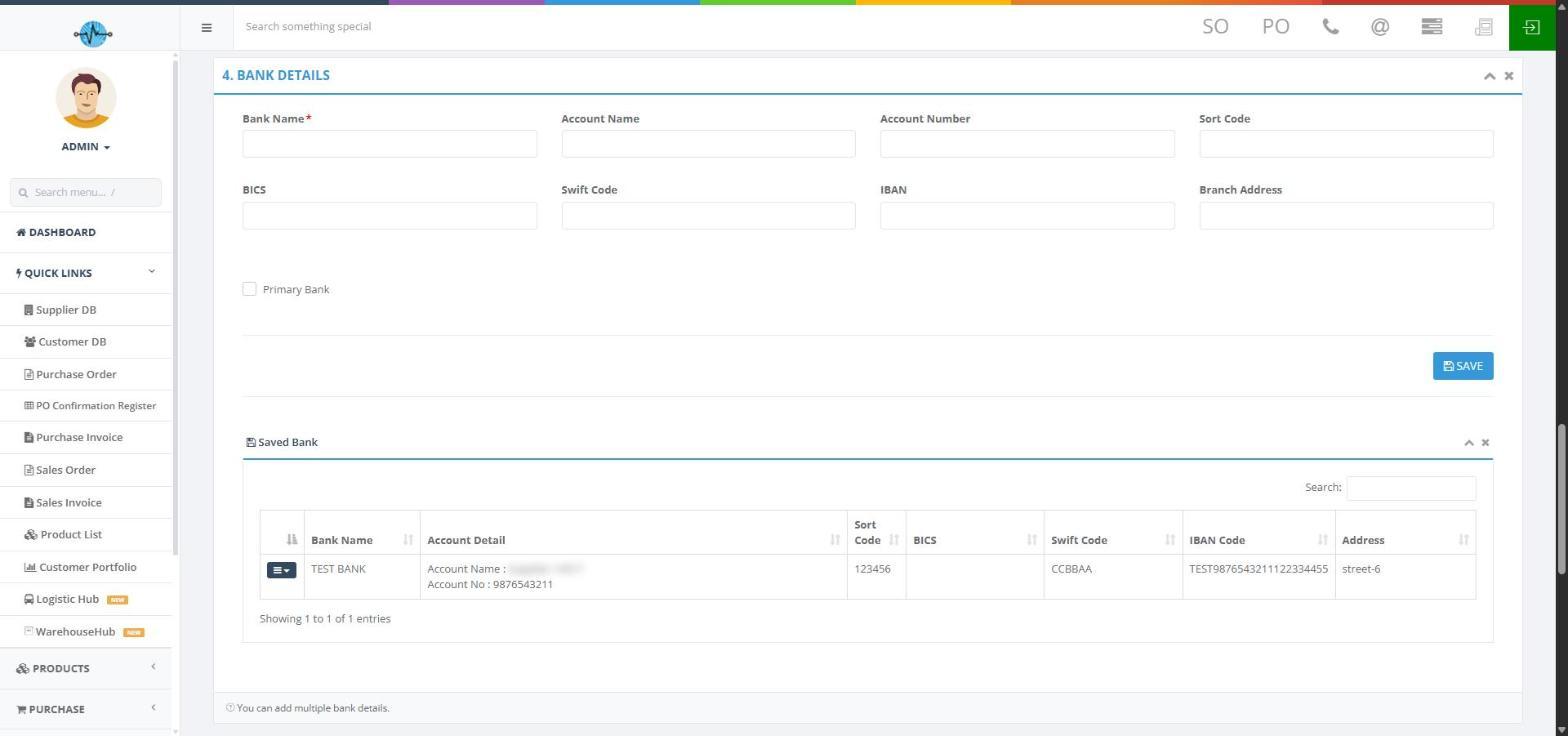
Screenshot 13: Bank details form and saved bank
Saved accounts are listed under Saved Bank with Bank Name, Account Detail, Sort Code, BICS, Swift Code, IBAN Code and Address. To edit or delete a bank, click the menu button at the start of its row and choose Edit or Delete. Check bank numbers carefully yourself. Whether the system checks their format: ______________________________
7.5 Upload a regulatory document
- Go to part 5. Regulatory Document Upload [New Version].
- Click Upload Supplier Documents. A panel opens that fills the screen. Its title is DOCUMENT UPLOAD with the supplier's name and number.
- Pick the Document Type.
- Click Choose File and select the file.
- Wait for the message "Document uploaded successfully" (the spelling is as shown on screen).
- Click the x at the top left to close the panel.
The panel has no SAVE button. Check that the document appears in the list with the status Success.
Accepted files: JPG, JPEG, PNG, PDF, Word (DOC, DOCX) and Excel (XLS, XLSX). Largest file size: ______________________________
| Document Type | Use it for |
|---|---|
| Supplier Account Opening Forms | The forms the supplier filled in to open an account. This is the type shown first. |
| Certificates | General certificates. |
| Licenses | General licences. |
| WDA (Wholesale Distribution Authorization) | The supplier's wholesale distribution authorisation. |
| WDL (Wholesale Dealer Licence) | The supplier's wholesale dealer licence. |
| Health and Safety Certificates | Health and safety certificates. |
| GDP (Good Distribution Practice) | Good Distribution Practice certificates. |
| GMP (Good Manufacturing Practice) | Good Manufacturing Practice certificates. |
| VAT Documents | VAT registration papers. |
| Authorizations | Authorisation letters. |
| Other Miscellaneous Documents | Anything that does not fit another type. |
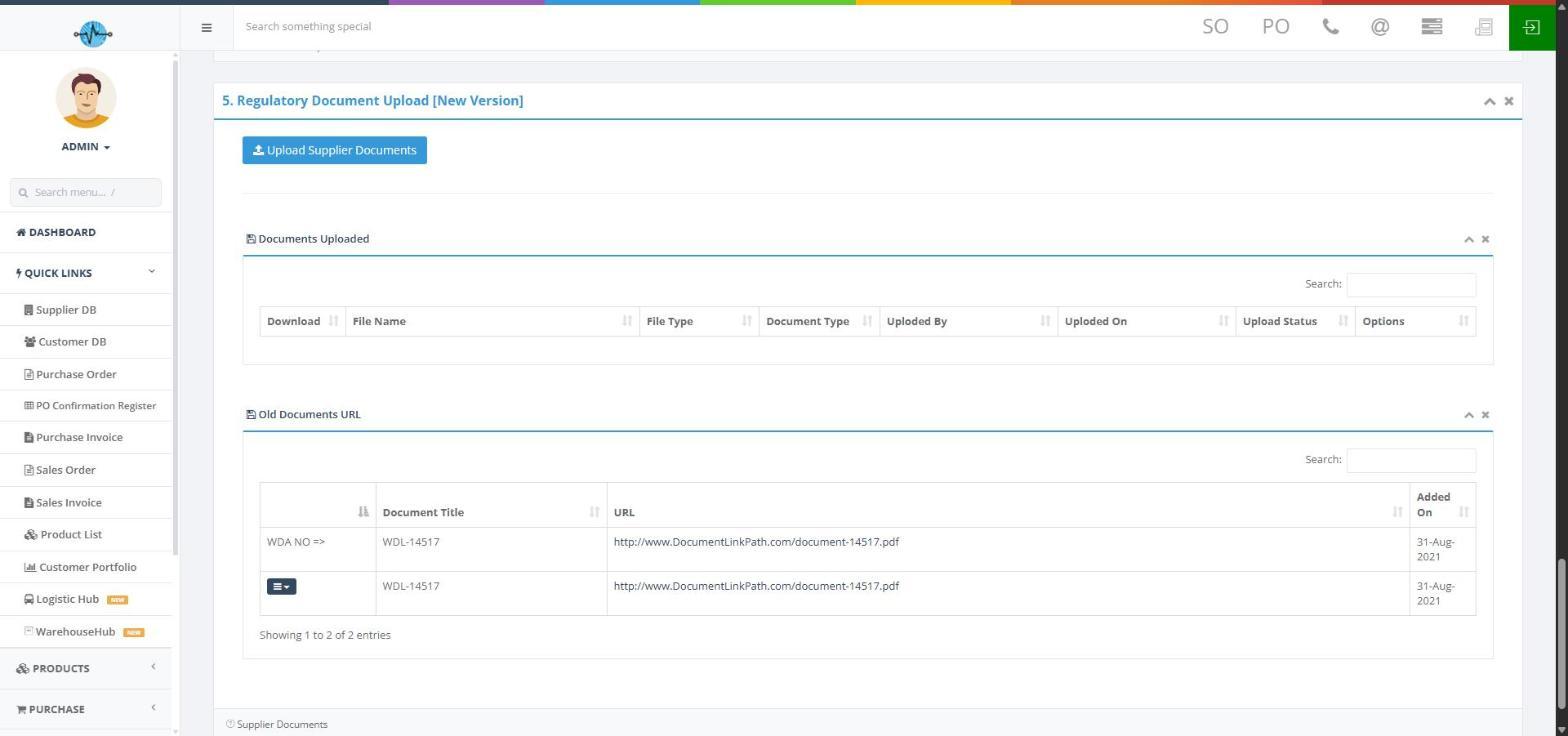
Screenshot 14: Regulatory documents and older document links
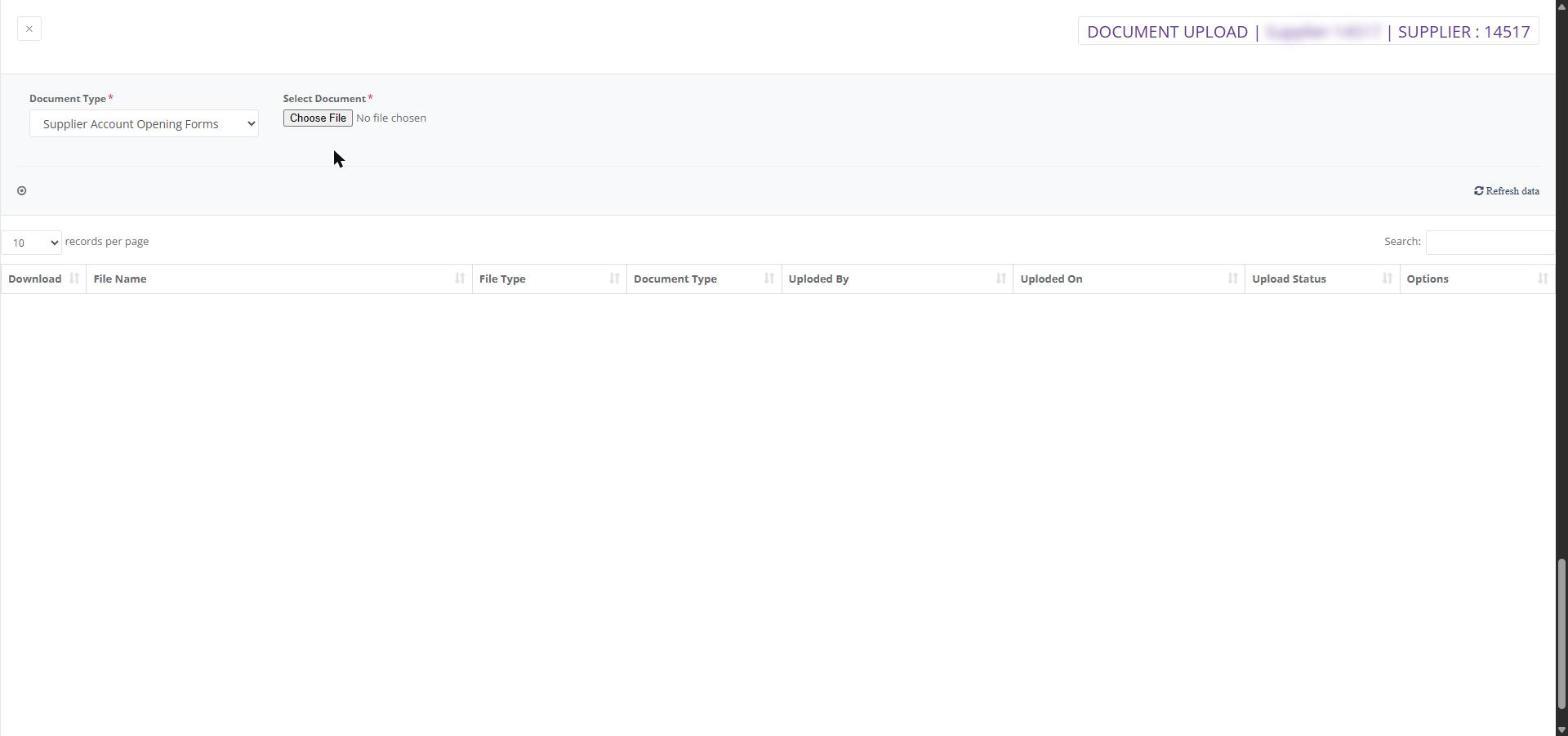
Screenshot 15: Supplier document upload panel
- Download: use the Download column on the document's row in Documents Uploaded.
- Remove: use the buttons under Options on the document's row. Confirmation message: "Document deleted successfully!" is one of the system's messages. What happens to the stored file: ______________________________
- Old Documents URL: this list shows links made by earlier versions of the system, with Document Title, URL and Added On. A menu button at the start of a row opens its actions. What they are: ______________________________
- If a file with the same name already exists, the system tells you. If you replace one, it says "Document replaced successfully".