4. Find, sort and open a supplier
Access needed: Supplier DB → IsView.
Find a supplier
- Look at the small box under a column heading, for example SUPPLIER / COMPANY.
- Type part of the value in the box.
- Press Enter, or use the filter button beside the box.
- To remove the search, clear the box and press Enter.
Result: The list shrinks to the matching suppliers and the count at the bottom updates.
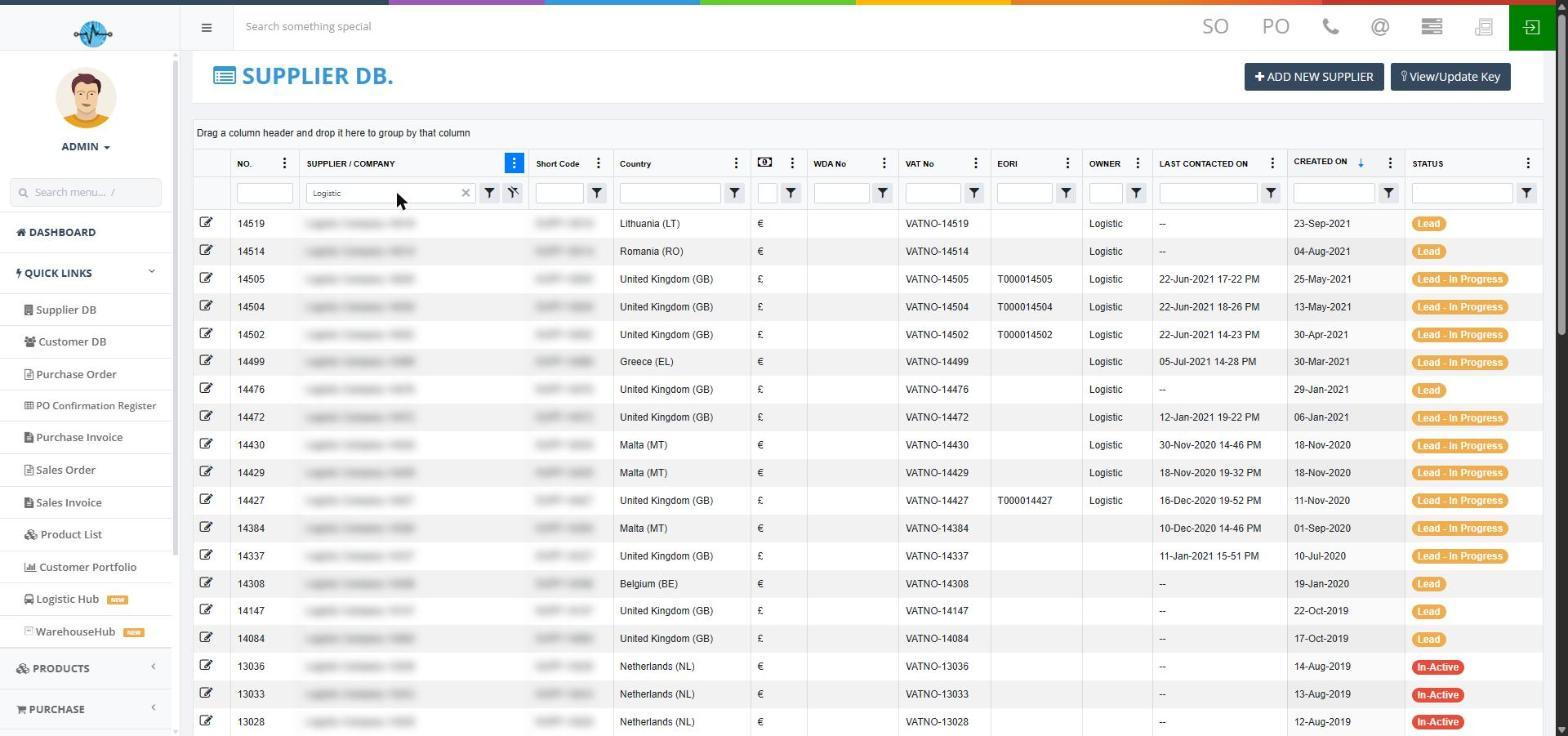
Screenshot 2: Column headings and the filter boxes
Sort, show or hide columns
- Click a column heading to sort the list. Click it again to reverse the order.
- To show or hide a column, click the three-dot menu beside a heading and choose Columns.
- Tick a column to show it. Untick it to hide it.
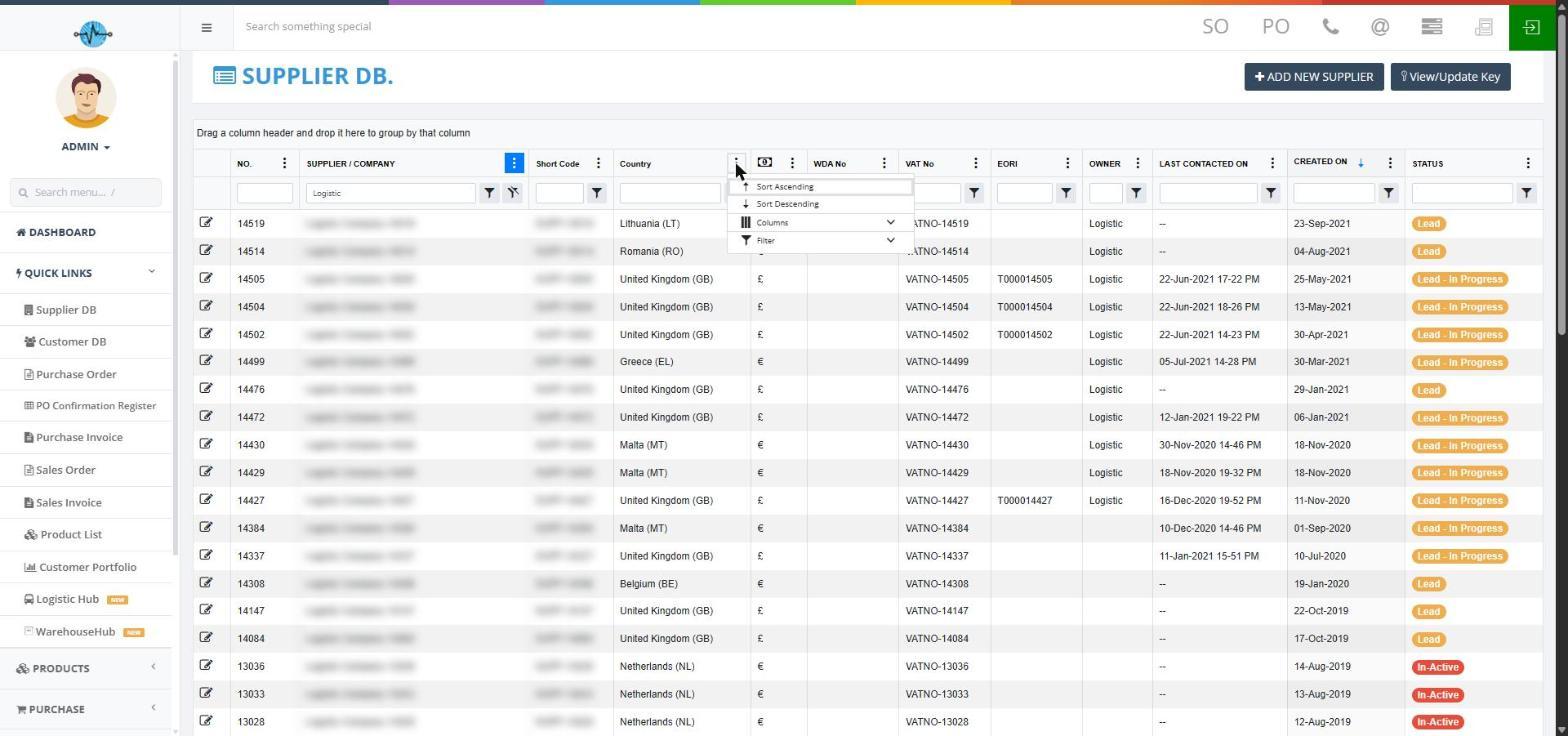
Screenshot 3: The column menu
Group suppliers and move between pages
- Group: drag a column heading, for example Country, onto the bar that says "Drag a column header and drop it here to group by that column".
- Pages: the list shows 50 suppliers per page. Use the page buttons below the list.
- Count: the number at the bottom shows how many suppliers match.
Note: Your searches, sorting and hidden columns are reset when you reopen the page.
Open a supplier's details
- Click the supplier's row in the list.
- A panel opens on the right side. This is the side panel.
- Read the details, then press Esc or click the x at the top to close it.
Opening and closing the panel does not change anything.
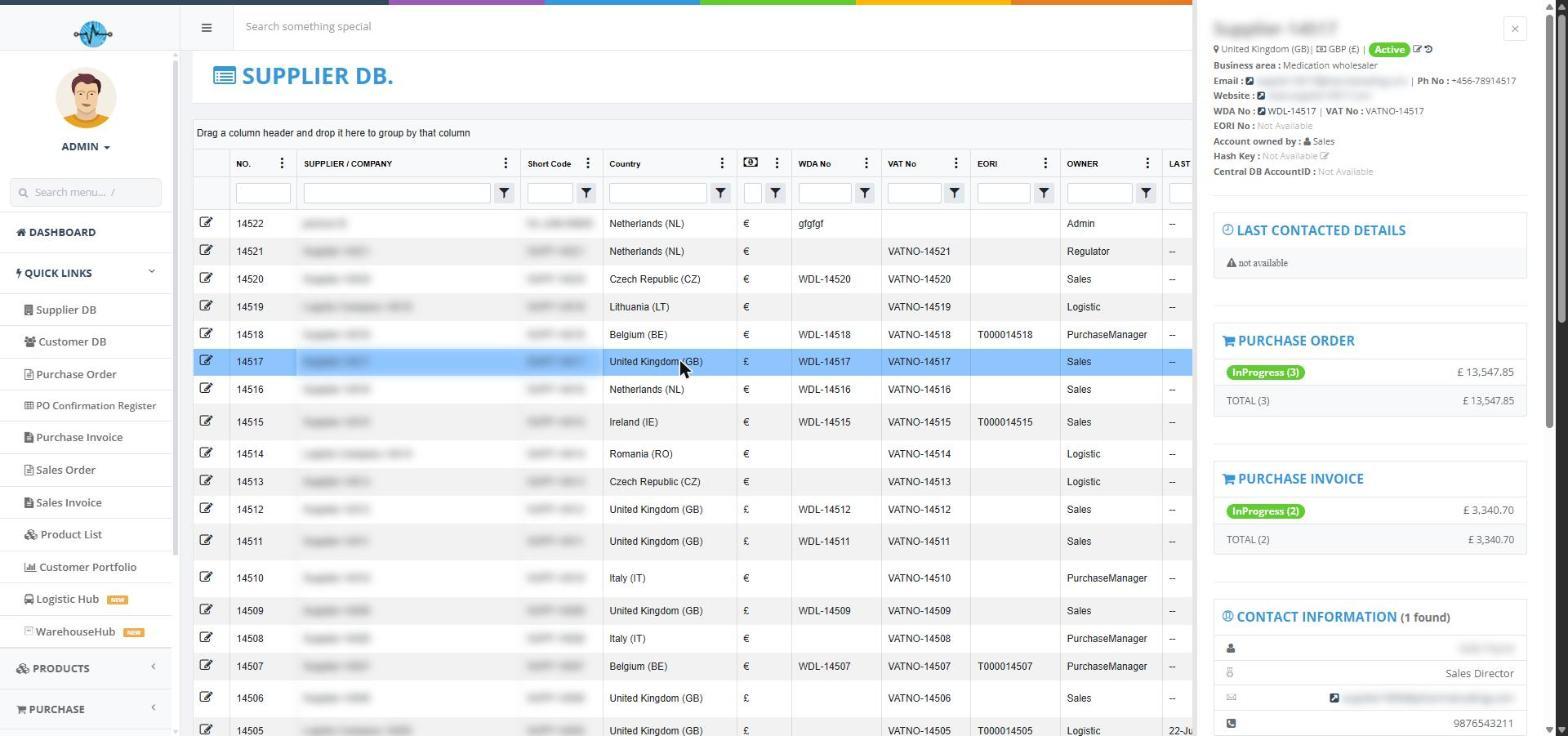
Screenshot 4: The top of the supplier side panel
| Part of the panel | What it shows |
|---|---|
| Top | Company name, country, currency and status. The pencil beside the status changes it. The clock opens the status history. |
| Details | Business area, email, phone, website, WDA No, VAT No, EORI No and Account owned by. Hash Key and Central DB AccountID are also shown here. |
| LAST CONTACTED DETAILS | The latest logged contact. It says "not available" when nothing has been logged. |
| PURCHASE ORDER | The number and value of the supplier's Purchase Orders, grouped by status, with a total. |
| PURCHASE INVOICE | The number and value of the supplier's Purchase Invoices, grouped by status, with a total. |
| CONTACT INFORMATION | The contact people. The main contact is marked [Primary contact]. |
| ADDRESS INFORMATION | Invoice, office and warehouse addresses. The main ones are marked as Primary invoice, office or warehouse address. |
| BANK INFORMATION | The supplier's bank details. The main account is marked [Primary bank]. |
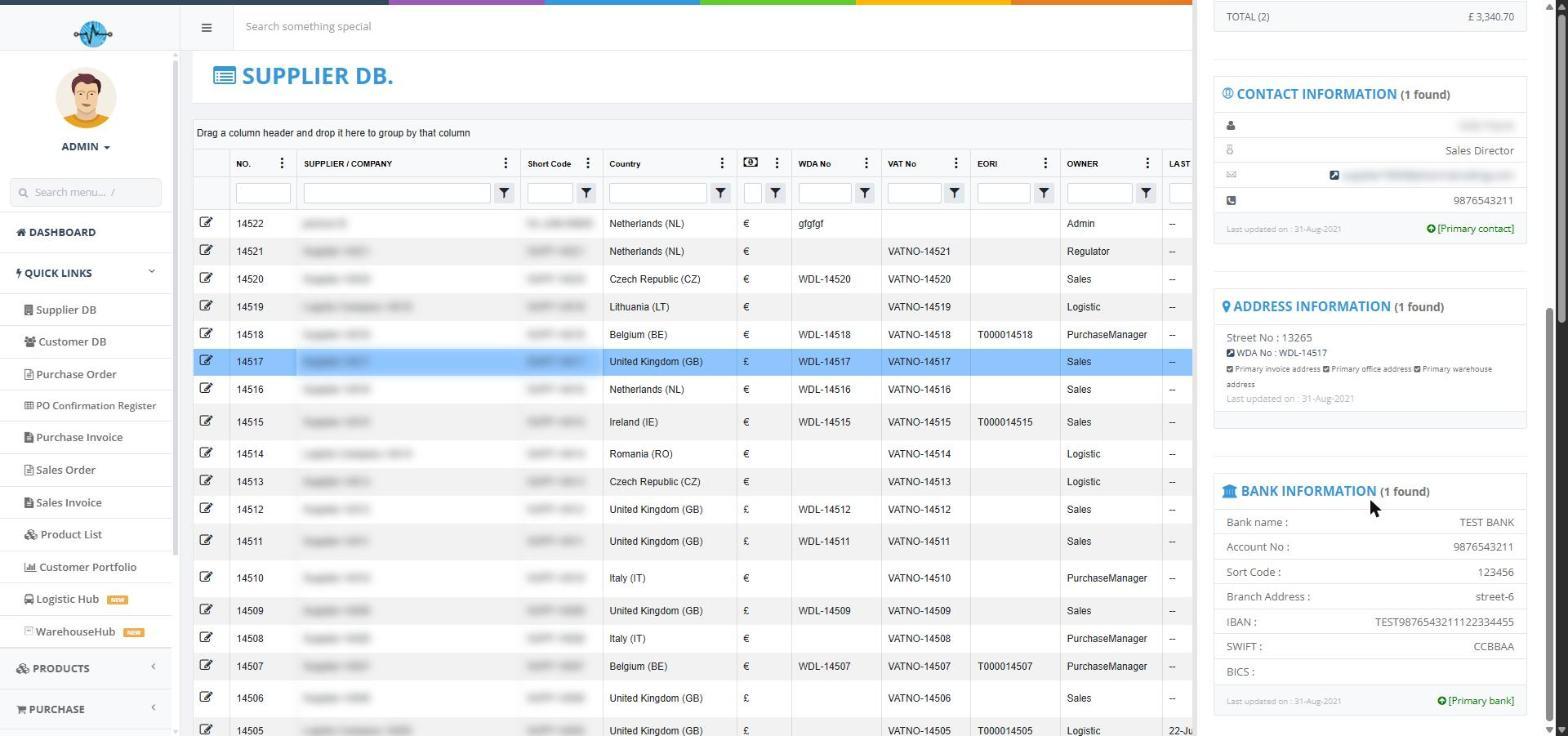
Screenshot 5: Contacts, address and bank details lower in the side panel
Note: Use the email link to open your mail program. Do not change Hash Key or Central DB AccountID unless your administrator asks you to.