9. Hash Key and Central DB AccountID
These two identifiers are used by the system and set up by your administrator. Leave them unchanged unless your administrator asks you to change them.
They are shown on the side panel under Hash Key and Central DB AccountID. They show "Not Available" when nothing is saved.
View or update them
- Open the supplier's side panel.
- Click the small pencil beside Hash Key. The window UPDATE HASH KEY opens.
- Type the Hash Key and, if asked, the Central DB AccountID.
- Click SAVE, or Close to leave without saving.
Result: The message "Supplier hash key save successfully" appears. If you leave the Hash Key empty, the message "Please enter hash key !" appears.
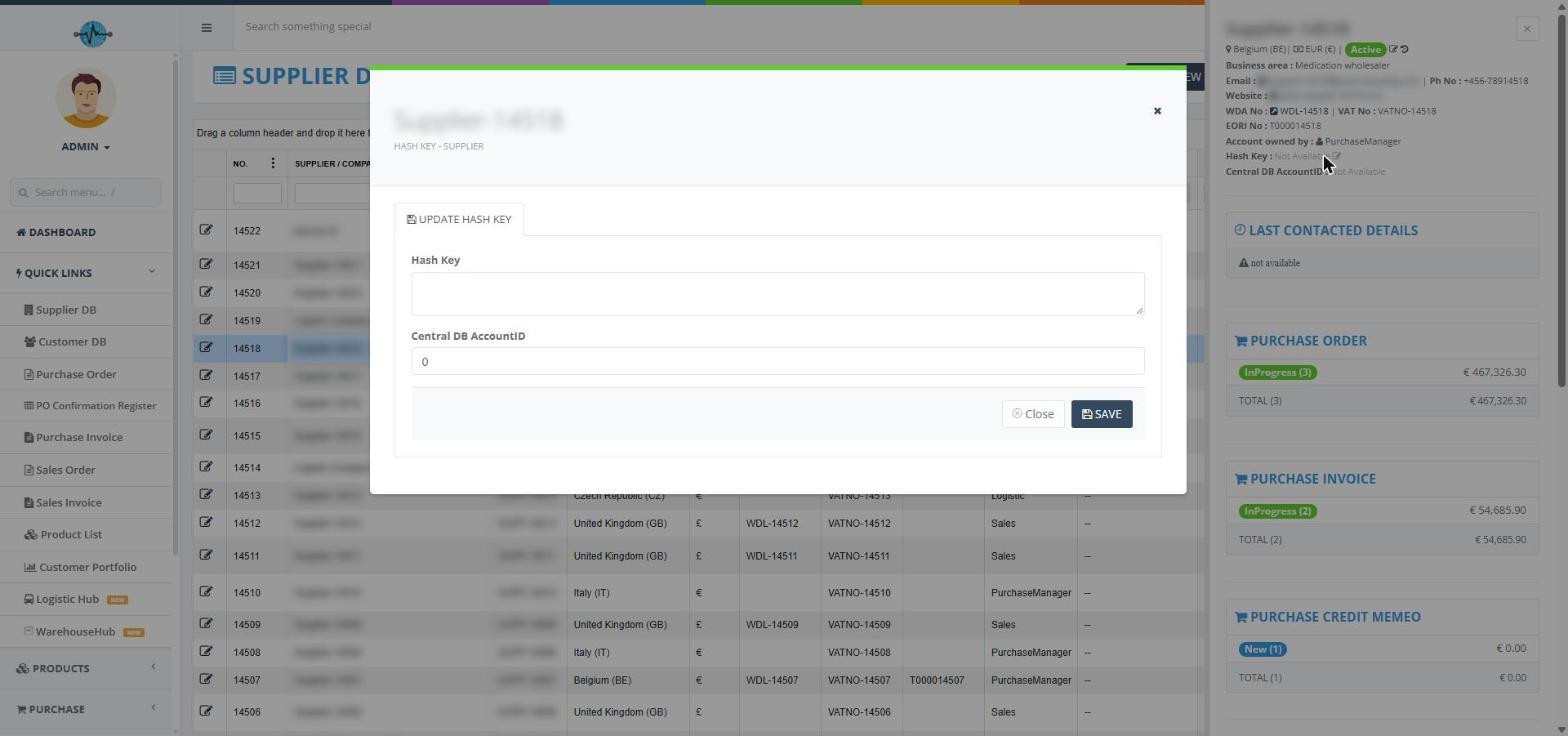
Screenshot 18: The Update Hash Key window
Note: The View/Update Key button at the top of the Supplier DB list is meant for the same purpose, but it does not open a window at the moment. Use the pencil on the side panel instead.