4. Access Locations: where people can sign in from
An access location is a work site, such as an office. It stores two things: the internet addresses (IP addresses) of that site and its time zone. When you give a person a location and turn IP Access on, they can sign in only from that site's addresses.
An IP address is a number that identifies an internet connection, for example 192.0.2.10. If you do not know your office's address, ask your IT team.
Who can do this: an Admin, a Super Admin or someone whose role allows managing System users.
Open the location list
- Open System Settings.
- Under Roles & Access, click Access Locations.
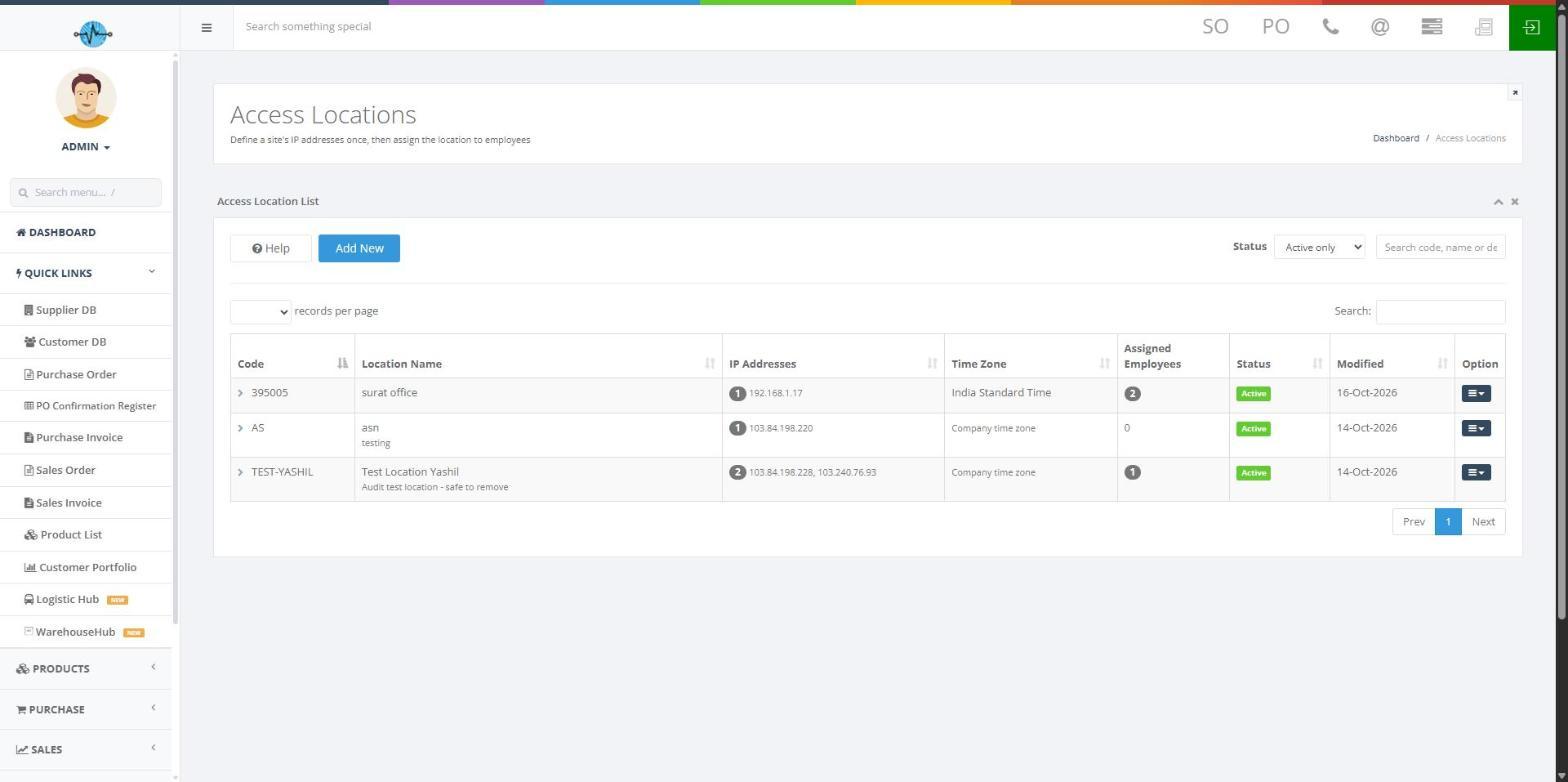
The list shows:
| Column | What it tells you |
|---|---|
| Code | The location's short ID |
| Location Name | Its name and description |
| IP Addresses | The registered addresses and how many there are |
| Time Zone | The time zone set for the location |
| Assigned Employees | How many people use this location |
| Status | Whether it is Active |
| Modified | When it last changed |
| Option | Edit, History and Deactivate |
Above the list: Add New makes a new location, Help opens the built-in guide, Status filters the list (All, Active only or Inactive only; it shows Active only by default) and Search, Records per page and Prev / Next help you find entries.
Create a location
- Click Add New.
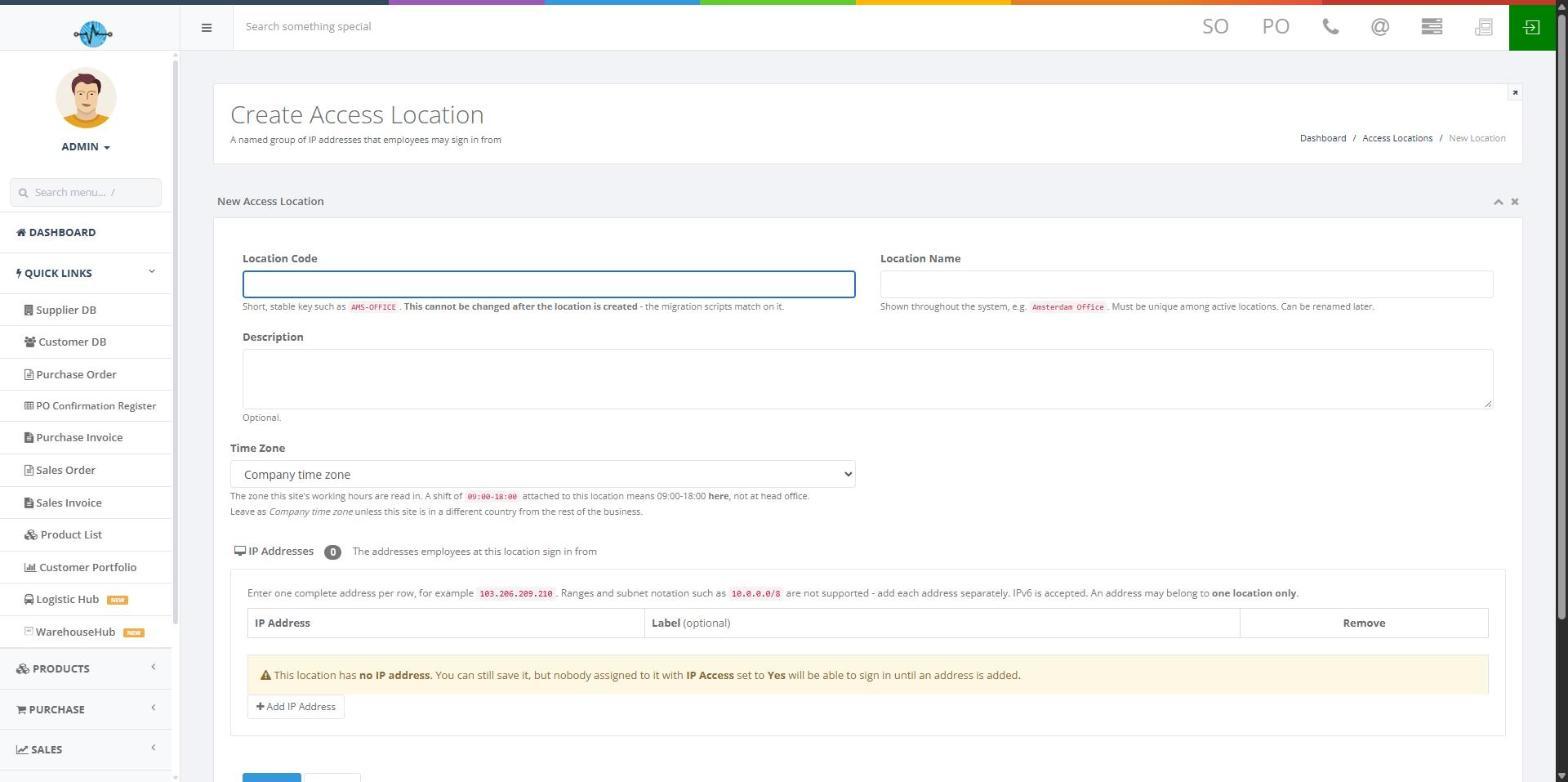
- Fill in the details:
| Field | What to enter | Rule |
|---|---|---|
| Location Code | A short ID, such as AMS-OFFICE | Cannot be changed after you save |
| Location Name | A name people recognise, such as Amsterdam Office | Must be different from other active locations. You can rename it later |
| Description | Extra details | Optional |
| Time Zone | The time zone of the site | Starts as the company time zone. Change it if the site is in another one |
The time zone matters because shift hours are read in the location's time zone. A shift of 09:00 to 18:00 means those hours where the location is.
Add internet (IP) addresses
- Click + Add IP Address. A new row appears.
- Type the address in IP address.
- Optionally add a label, such as "primary fibre" or "backup connection".
- Repeat for each address.
Rules for addresses:
- Enter one complete address per row, for example 103.206.209.210.
- Ranges and subnet notation, such as 10.0.0.0/8, do not work.
- Both IPv4 and IPv6 addresses are accepted.
- An address can belong to only one location.
To remove an address, click the trash icon in its row, check the remaining addresses, then click Save.
You can save a location with no address. But anyone assigned to it with IP Access set to Yes cannot sign in until you add one.
Save the location
- Check the details, time zone and addresses.
- Click Save.
- Look for the location in the list. It should show as Active.
Edit a location
- Open System Settings, then Access Locations.
- Find the location, then click Option, then Edit.
- Change the details or addresses.
- Click Save.
The Location Code cannot be changed. When you change an address, it applies to everyone assigned to that location from their next sign-in. You do not need to edit each person. Before removing an address, check who uses the location.
See what changed and who changed it
- Open System Settings, then Access Locations.
- Find the location, then click Option, then History.
The Change History screen lists When the change happened (in company time), Who made it, What changed and the old (From) and new (To) values. Creating a location and adding an address are recorded as separate entries. Deactivating and activating a location are recorded too. On this screen, Edit this location opens it for editing and Who uses this shows the people assigned to it.
Deactivate a location
- Open System Settings, then Access Locations.
- Find the location, then click Option, then Deactivate.
Deactivating does not delete the location. It just stops being active and it disappears from the list when the Status filter is on Active only. You cannot deactivate a location while people are assigned to it. Move those people to another location first. A deactivated location can be made active again (the history records "Location Activated"). To find it, set the Status filter to Inactive only or All.