5. Access Shifts: when people can sign in
An access shift is a weekly timetable. It lists the days and hours when people are allowed to sign in. It applies only to people whose Time Access is set to Yes.
Who can do this: an Admin, a Super Admin or someone whose role allows managing System users.
Open the shift list
- Open System Settings.
- Under Roles & Access, click Access Shifts.
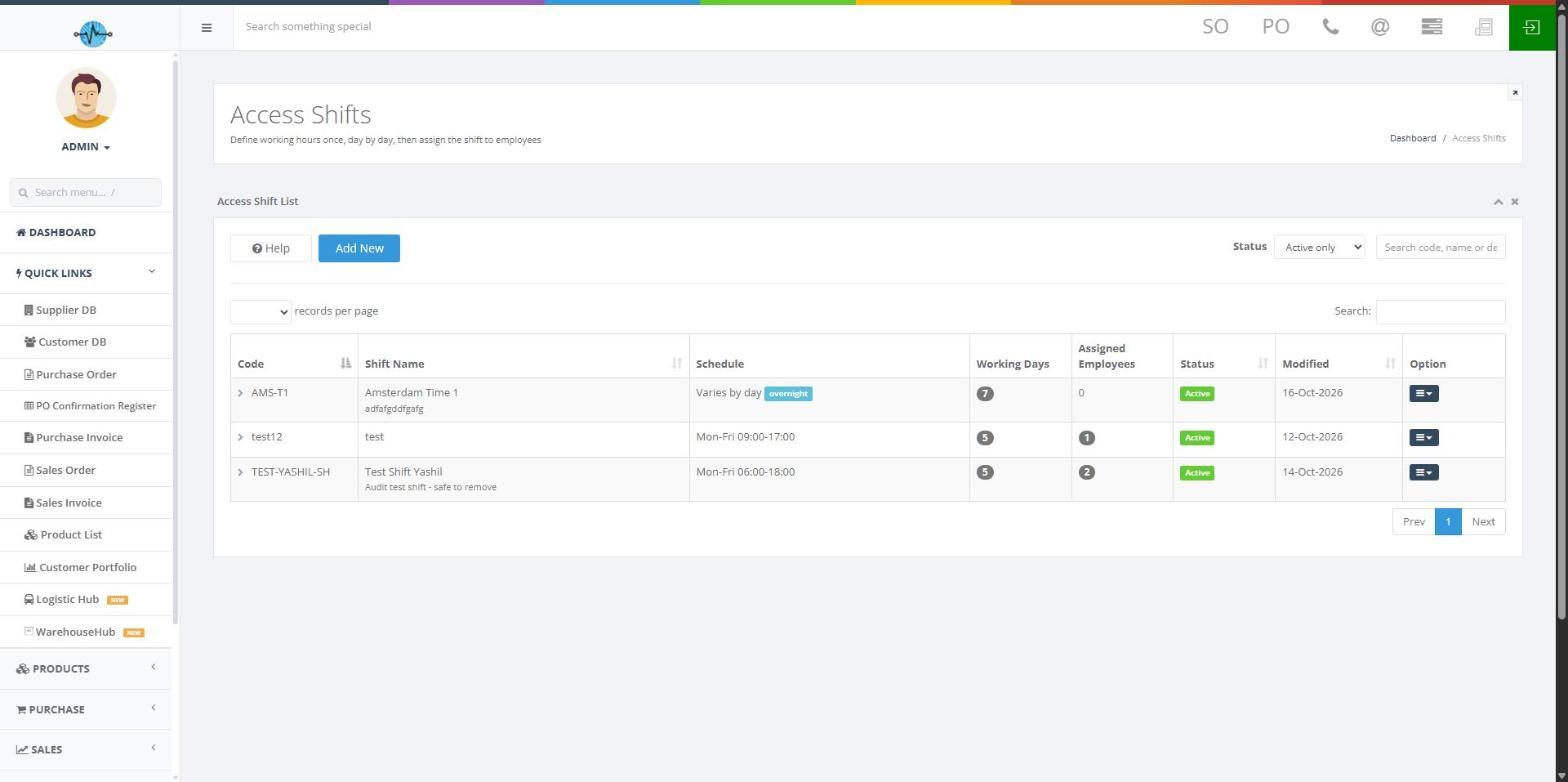
The list shows:
| Column | What it tells you |
|---|---|
| Code | The shift's short ID |
| Shift Name | The name of the shift |
| Schedule | A short summary of the working hours |
| Working Days | How many days are switched on |
| Assigned Employees | How many people use this shift |
| Status | Whether it is Active |
| Modified | When it last changed |
| Option | Edit, History and Deactivate |
Above the list: Add New makes a new shift, Help opens the built-in guide, Status filters the list (All, Active only or Inactive only; Active only by default) and Search, Records per page and Prev / Next help you find entries.
Create a shift
- Click Add New.
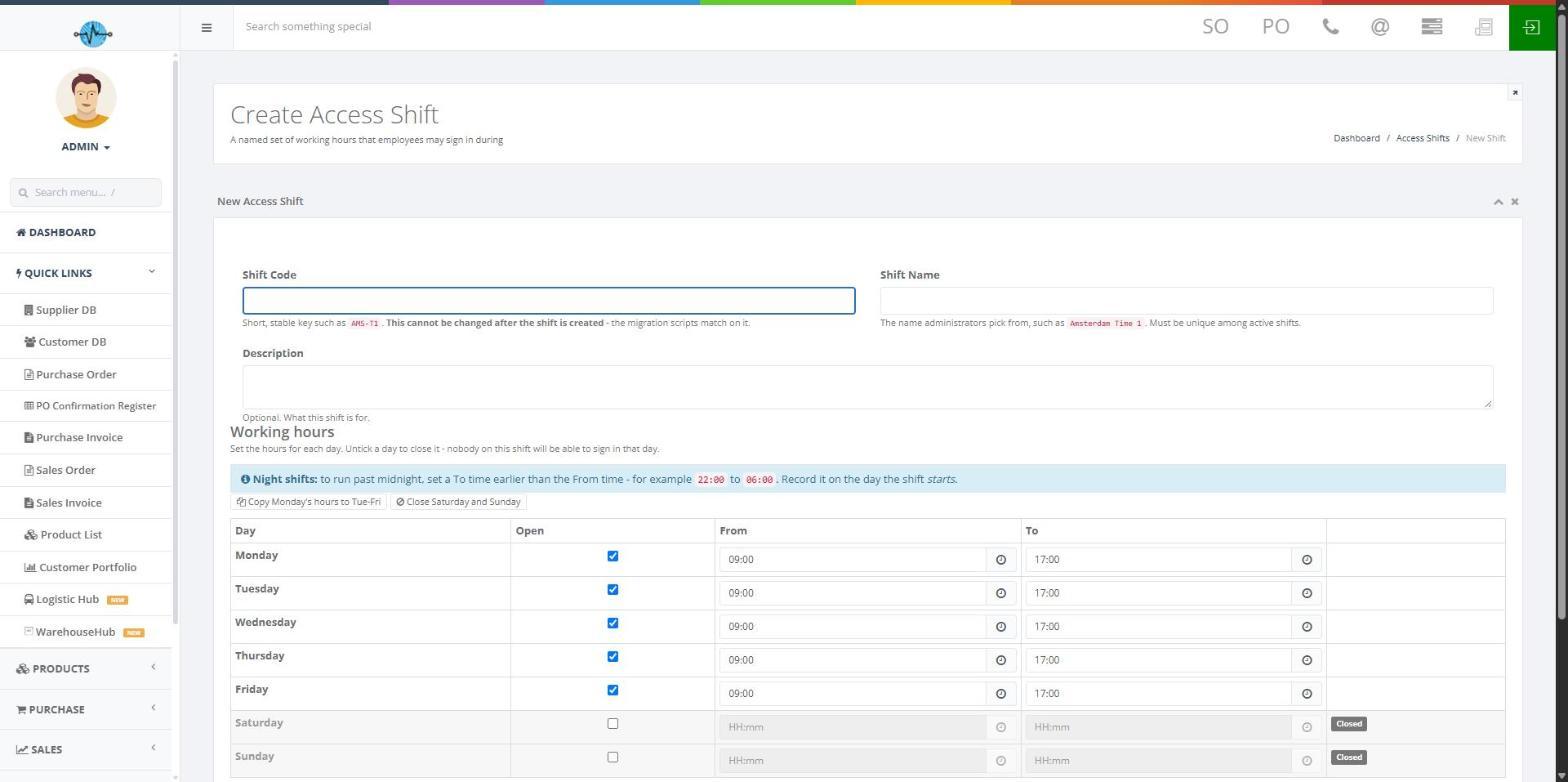
- Fill in the details:
| Field | What to enter | Rule |
|---|---|---|
| Shift Code | A short ID, such as AMS-T1 | Cannot be changed after you save |
| Shift Name | A name that is easy to pick from a list | Must be different from other active shifts |
| Description | What the shift is for | Optional |
Set the working days and hours
The form starts with Monday to Friday open from 09:00 to 17:00 and Saturday and Sunday closed. For each day:
- Tick Open to switch the day on.
- Type the start time in From.
- Type the end time in To.
- Clear Open to close the day.
A closed day shows "Closed" and its time boxes are greyed out. People on that shift cannot sign in on a closed day.
Two shortcut buttons save time:
| Button | What it does |
|---|---|
| Copy Monday's hours to Tue-Fri | Gives Tuesday to Friday the same hours as Monday |
| Close Saturday and Sunday | Closes both weekend days |
Set up a night shift that runs past midnight
- Switch on the day the shift starts.
- Type the start time in From.
- Type an earlier time in To.
Example: Monday, From 22:00, To 06:00. This runs from Monday at 22:00 until Tuesday at 06:00.
Which time zone is used?
Shift hours follow the time zone of the location you assign the person to (see Part 4). The shift itself has no time zone.
Save the shift
- Check the details and the daily schedule.
- Click Save.
- Look for the shift in the list.
A saved shift looks like this in the list: Code AMS-T1, Shift Name Amsterdam Time 1, Schedule Mon-Fri 09:00-17:00, Working Days 5, Assigned Employees 0, Status Active.
Edit, view history or deactivate a shift
- Find the shift in the list.
- Open the dropdown in the Option column.
- Choose what you need:
| Action | What it does |
|---|---|
| Edit | Opens the shift so you can change it |
| History | Shows the change history |
| Deactivate | Makes the shift inactive |
The detailed steps and results for these three actions are not yet written. See "Still to be confirmed" at the end.