6. Adding a new person
Before you start, make sure the person's role exists. If you plan to restrict where or when they sign in, create the location and shift first (see Part 2).
Open the form
- Open System Settings in the left side menu.
- Under Members, click List Members.
- Click + Add New User at the top left of the list. You can also click New Member in the left side menu.
The Create New User page opens.
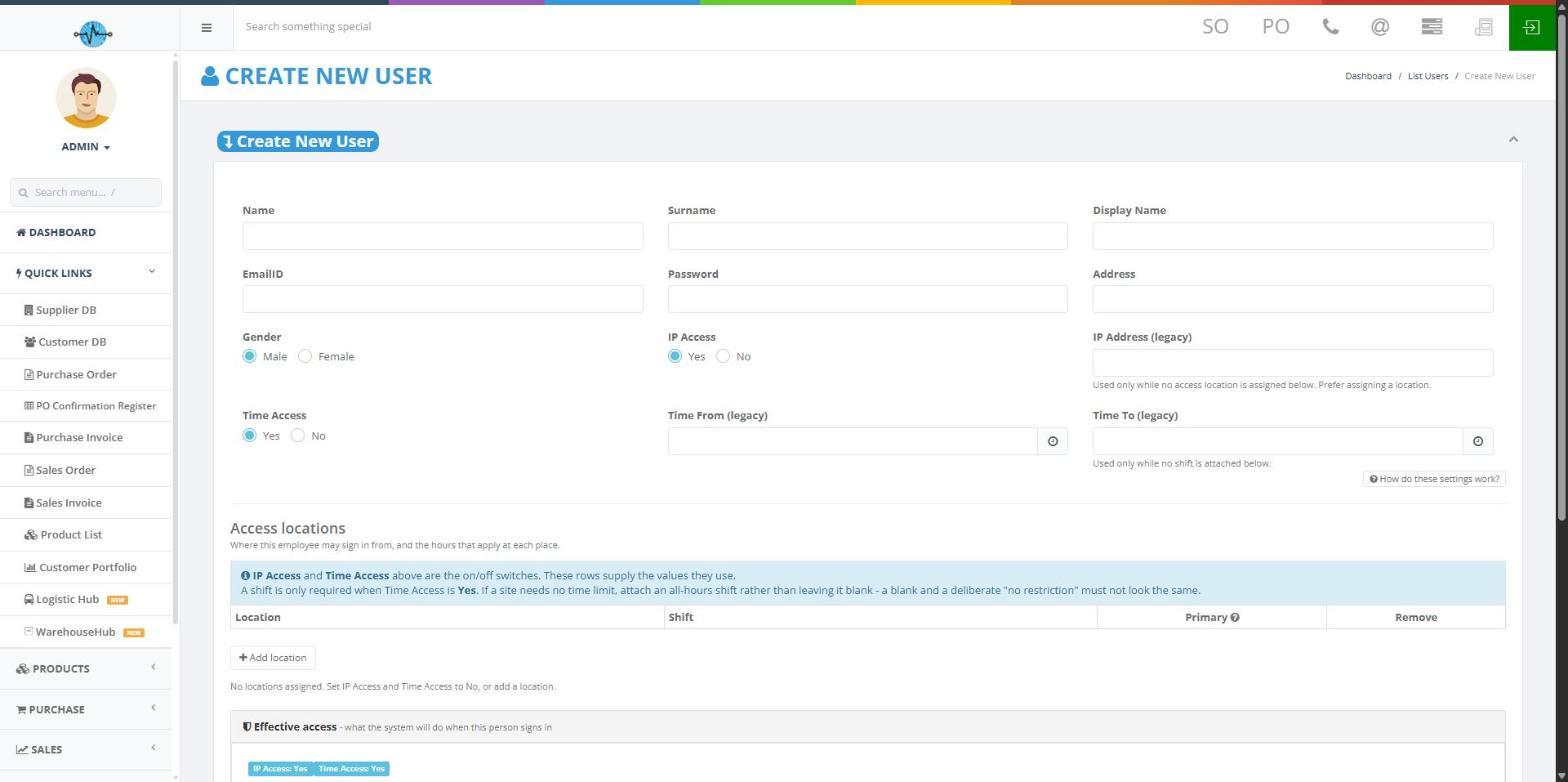
Step 1. Personal and account details
| Field | What to enter | Required? |
|---|---|---|
| Name | First name | Yes |
| Surname | Last name | No |
| Display Name | The name shown in the system | Yes |
| Email ID | The person's email address. They use it to sign in | Yes |
| Password | The first password for the account | Yes |
| Address | Home or work address | No |
| Gender | Male or Female | Yes |
Step 2. Choose IP Access and Time Access
Select Yes or No for each:
| Setting | Yes | No |
|---|---|---|
| IP Access | The person can sign in only from approved internet addresses | No limit on where they sign in from |
| Time Access | The person can sign in only during their shift hours | No limit on when they sign in |
On a new form, both are set to Yes to begin with. Change them if the person does not need these limits. Not sure which to choose? See the table in Part 2.
Ignore the "legacy" fields
The form still shows three older fields: IP Address (legacy), Time From (legacy) and Time To (legacy). They come from the old way of setting up access, where addresses and times were typed straight onto the person. Use locations and shifts instead (Steps 3 and 4). The legacy IP field is only read when the person has no location and the legacy time fields are only read when no shift is attached. The legacy time fields give one window for all seven days, so they cannot express weekend hours.
Step 3. Add a location
A location is required whenever IP Access or Time Access is Yes. It provides the approved addresses and the time zone.
- Under Access locations, click + Add location.
- A row appears with Location, Shift, Primary and Remove.
- Open the Location dropdown and pick a location you created earlier.
- If the person works at more than one site, click + Add location again.
Step 4. Choose a shift
- Open the Shift dropdown next to the location.
- If Time Access is Yes, pick the shift.
- If Time Access is No, leave it on No time restriction.
If Time Access is Yes but the person may sign in at any hour, do not leave the shift blank. Pick a shift that covers all hours.
Step 5. Set the primary location (only if there are several)
Use the Primary option (a round selector in the row) to mark the main location.
- If IP Access is Yes, the internet address the person signs in from decides which location applies.
- If IP Access is No and there are several locations, the primary one decides which shift and time zone apply.
- If there is only one location, it is automatically the primary.
To remove a location from the person, click the red trash button in its row. This only removes it from this person. The location itself is not deleted.
Step 6. Check Effective access
Before saving, read the Effective access box. It tells you in plain words what will happen when this person signs in. For example, with both limits on and no location chosen, it shows: "No locations assigned. This employee cannot sign in at all." If you see that, add a location and a shift, then read the box again. When no limits are set, it shows: "No restrictions. This employee can sign in from anywhere, at any time."
Step 7. Choose the role
Open RoleID and pick the role. The role must already exist (see Part 3). This is required.
Step 8. Choose the manager (optional)
Open Managers and pick the person or people this user reports to. You can pick more than one. This places them in the reporting chain. If you pick nobody, the box shows "No manager (root user)". Role and manager are two separate choices.
Step 9. Add a photo (optional)
Under Image, click Choose File and pick a profile picture.
Step 10. Activate and save
- Tick Is User Active?. It starts unticked and the person cannot sign in unless their account is active.
- Check the details, role, manager and access settings.
- Click Save.
Then send the person their email and password through a message or another approved channel. They can follow Part 1 to sign in.