1. Logging in
You sign in with the email and password your administrator gave you. Your account must be Active or the sign-in will not work.
Your administrator sends your sign-in details directly to you, by Email or another approved channel.
How to sign in
- Open the ERP address: https://pharmaplatformdemo.azurewebsites.net/
- Type your Email ID and Password.
- Click Login / Punch-In.
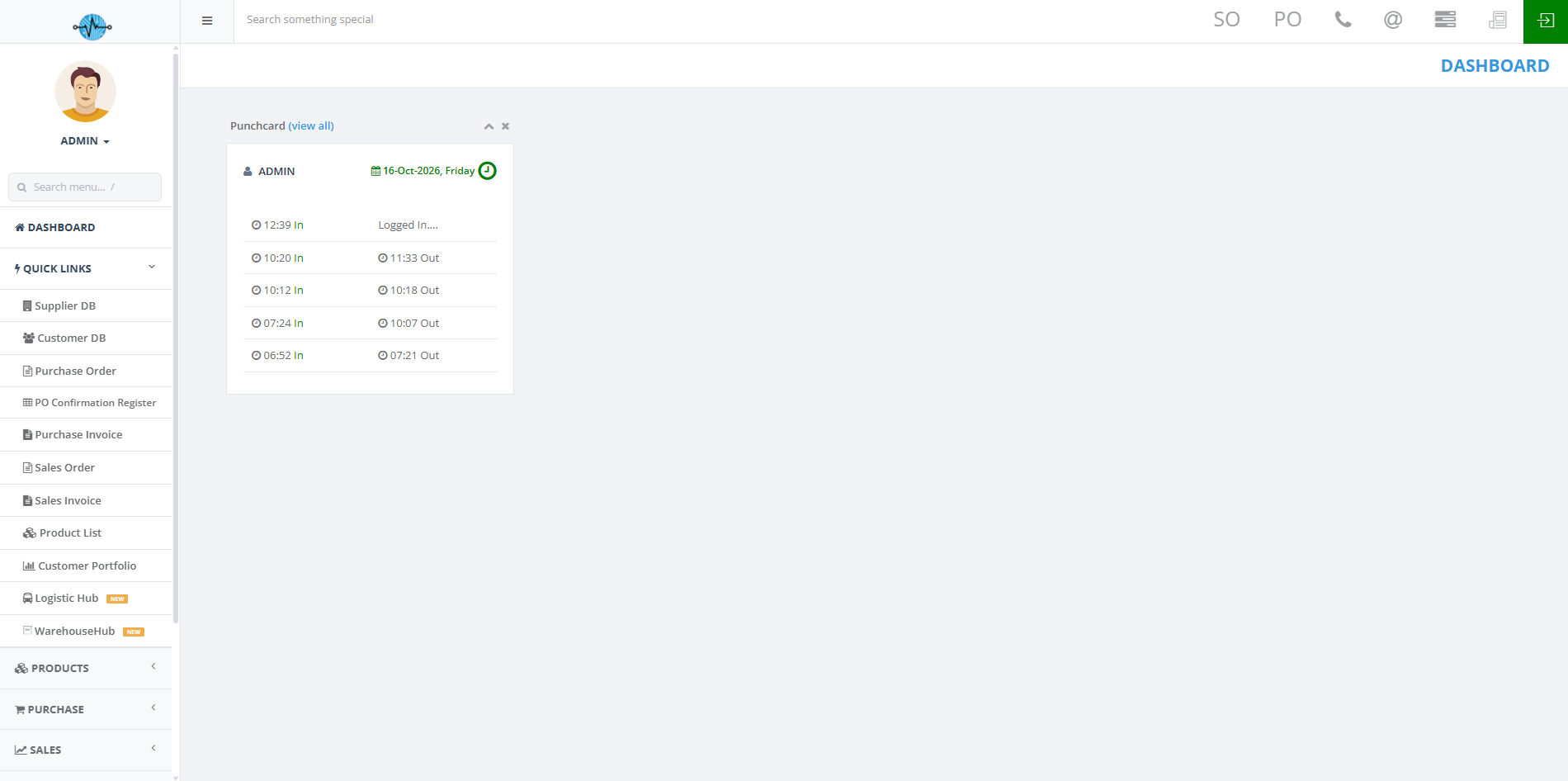
You will land on the Dashboard. This is the first screen everyone sees after signing in.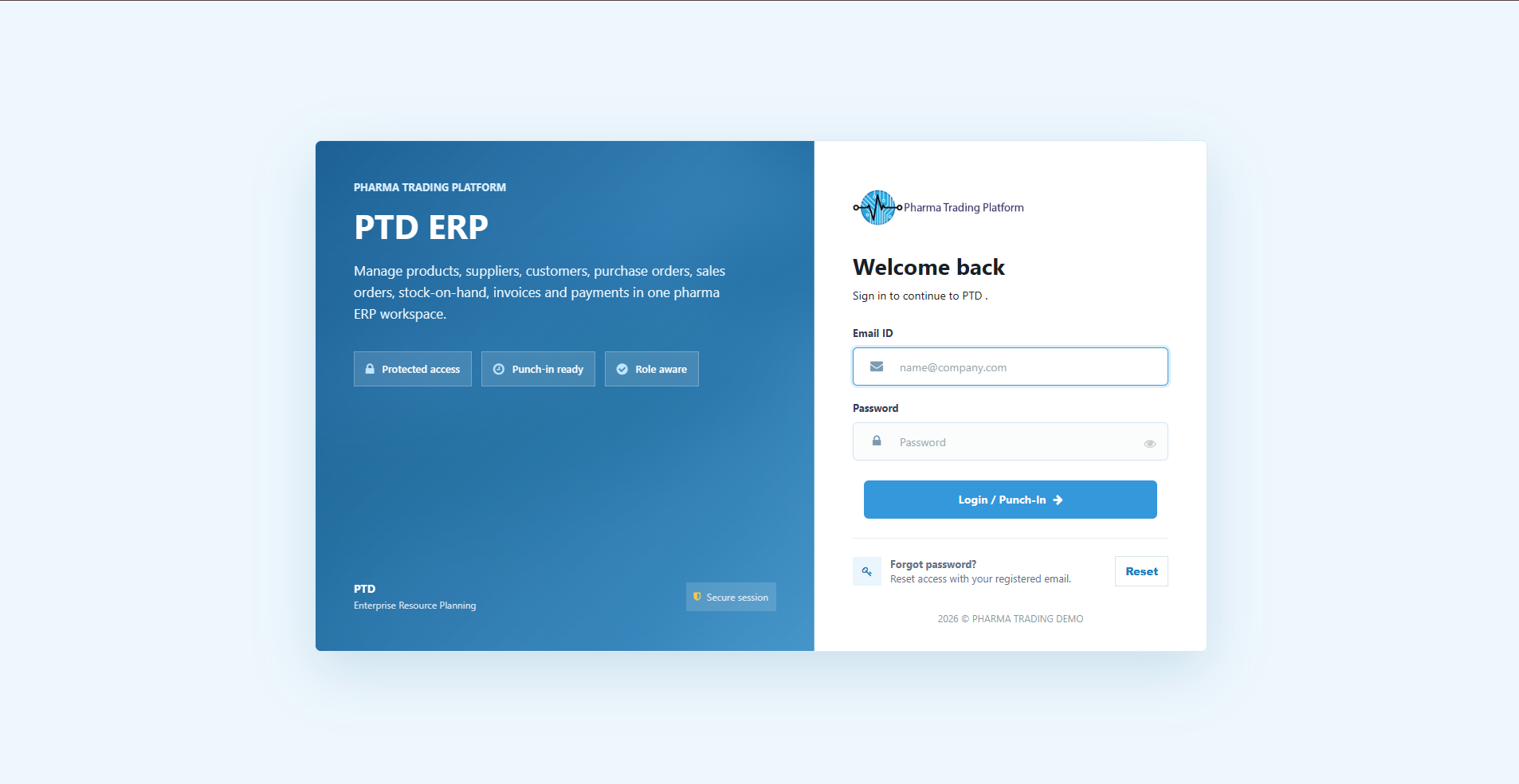
What you see on the Dashboard
| Part of the screen | What it is for |
|---|---|
| Left side menu | Your profile picture, a menu search box and the main sections: Dashboard, Quick Links, Products, Purchase, Sales, Logistics & Warehouse, Regulatory, BC Sync, Reports and System Settings. Click a heading to open its options. |
| Top bar | A button to show or hide the side menu, a search box and shortcut icons. |
| Middle of the screen | Boxes called widgets. The Punchcard box shows your name, today's date, the time you signed in and your status. It has View all, collapse and close buttons. |
Why some menu items are missing
You only see what your role allows. If a section is not in your side menu, your role does not include it. Ask your administrator if you think you need it. Open any section to see the actions you can use there.
Signing out
Click the green sign-out icon in the top-right corner of the Dashboard. You are signed out straight away. There is no "Are you sure?" box.
If you forget your password
- On the sign-in screen, click Reset under "Forgot password?".
- Type your email address when asked.
- The system will show: "Password reset is not enabled yet. Please contact the administrator."
So for now, ask your administrator to help you get back in.