7. Managing existing people
Find a person
- Open System Settings in the left side menu.
- Under Members, click List Members.
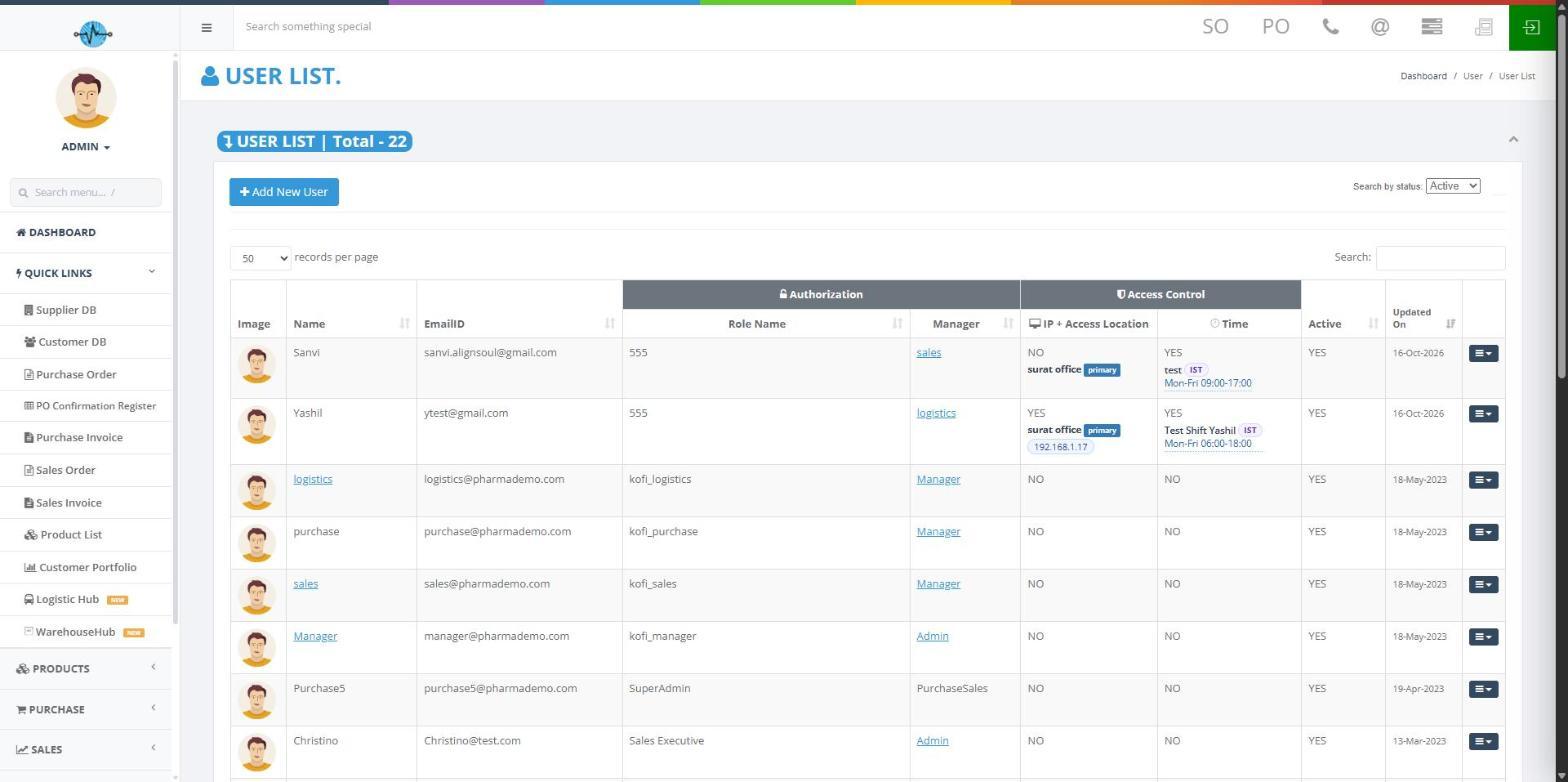
The User List shows the total number of people. It shows only Active people to begin with. Use Search by status (All, Active or Inactive), Search and Records per page to find someone. The list has these columns:
| Column | What it shows |
|---|---|
| Image | Profile picture |
| Name | The person's name |
| Email ID | Their email address |
| Role Name | Their role (under the heading Authorization) |
| Manager | Who they report to (under the heading Authorization) |
| IP + Access Location | Whether IP Access is on (YES or NO), followed by their assigned locations. The primary location is marked (under the heading Access Control) |
| Time | Whether Time Access is on (YES or NO), followed by their shift name and hours (under the heading Access Control) |
| Active | Whether the account is active |
| Updated On | When it last changed |
At the far right of each row is a menu button. It offers History, Deactive (or Active for an inactive person), Edit and Delete.
Who can do this: an Admin, a Super Admin or someone whose role allows editing users (and, for deleting, deleting users).
Edit a person
- In List Members, find the person.
- Click the menu button at the right end of their row.
- Click Edit. The Edit User screen opens. It has the same fields as the Add New User form.
- Change what you need. To keep the current password, leave New Password empty.
- Click Save.
The person's details are updated. If you changed their role, their access changes to match.
See a person's change history
- In List Members, find the person.
- Click the menu button at the right end of their row.
- Click History. A panel opens with the changes made to that person's record.
Activate or deactivate a person
- In List Members, find the person.
- Click the menu button at the right end of their row.
- Click Deactive for an active person. For an inactive person, the same item reads Active. To find inactive people, set Search by status to Inactive or All.
Delete a person
- In List Members, find the person.
- Click the menu button at the right end of their row.
- Click Delete.
- A confirmation box asks "Are you sure to delete this AdminMember?". Click OK to confirm or Cancel to keep the person.
What happens next and whether a deleted person can be brought back, is not yet described. See "Still to be confirmed" at the end. If you only want to stop someone signing in, use Deactive instead.
See who a person reports to
In List Members, hover your mouse over the Manager column in the person's row. The reporting chain appears, showing their manager and the managers above them. Only active people are shown.
The Root account sits at the top and the chain goes down from there, for example from Root to Admin to a team lead to team members. Not everyone needs this exact shape.