9. Other System Settings screens
These screens are also under System Settings. Each one is shown only if your role allows it (see Part 3). This part describes what you see on each screen. Detailed step-by-step instructions are still to be confirmed (see the end of this guide).
Company Settings
Open System Settings, then Company, then Company Settings. This is a list of company-wide switches and values. Each setting has a Key, a Value (for example ON, OFF, a number or a time), a Description that explains what it does, Modified On, Modified By and an Options column. The title shows the total number of settings. Use Search, records per page and Prev / Next to find one.
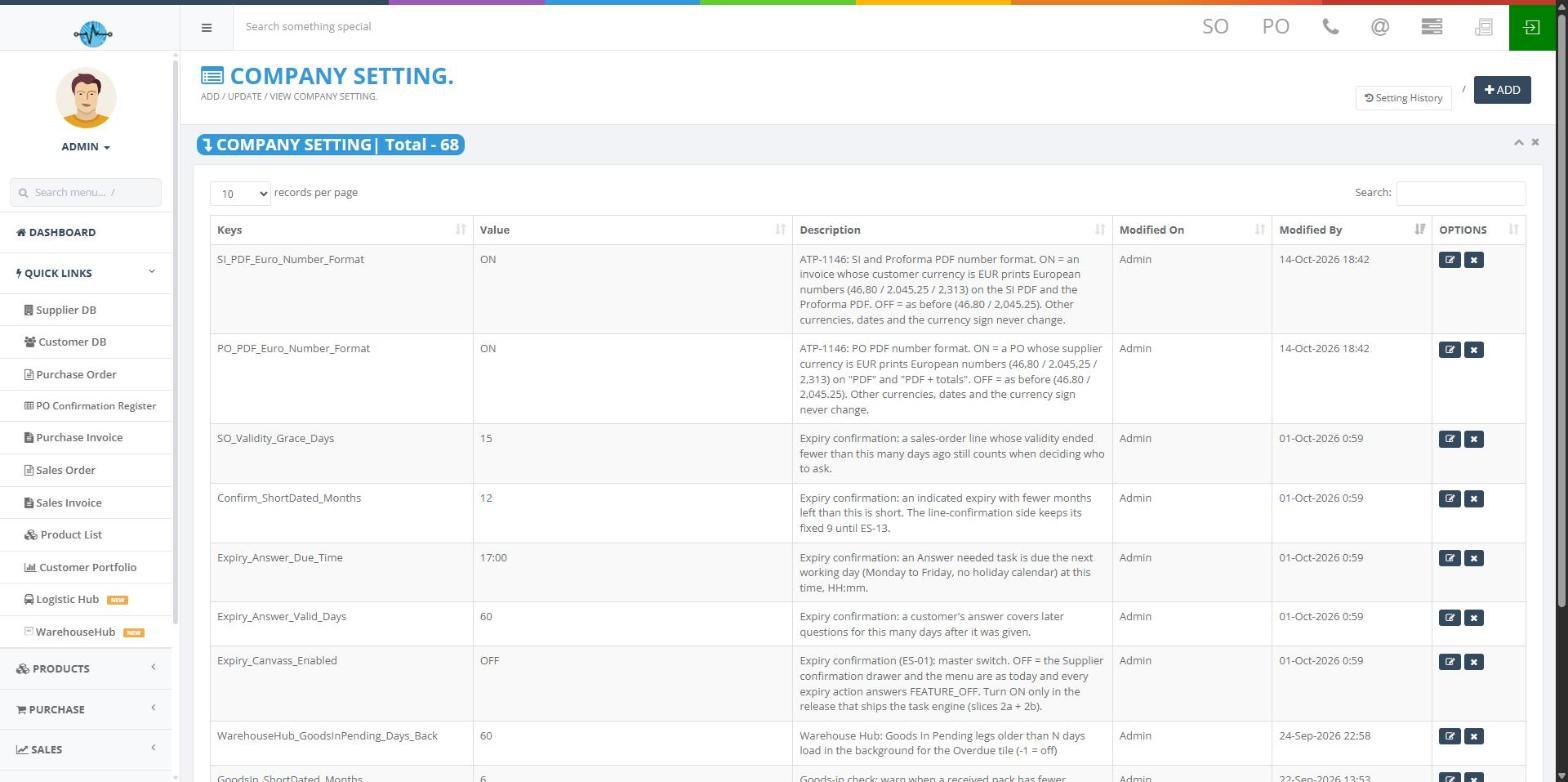
- Setting History shows what was changed on the settings.
- ADD adds a new setting.
- Your role decides whether you can view, add, change (value or description) or delete settings.
Settings change how the whole system behaves, for example how numbers print on PDFs or how expiry checks work. Read the Description before changing a value and tell the product team if you are not sure.
User Assignment and Owner Assignment
Open System Settings, then Members, then User Assignment (screen title: Data Input User Assignment) or Owner Assignment.
- Pick the person in Select user.
- Pick the module: Customer or Supplier.
- Use the two tabs to switch between the records that are assigned (or owned) and the ones that are not. User Assignment has Assigned / Not Assigned. Owner Assignment has Owner / Not Owner.
Each list shows Name, Code, Region, Currency, Owner, Owner creation Date, Assign To, Created By, Created On and Status. You can filter by region (country) and by status, such as Lead, Onboarding, Active, Inactive or Closed.
Login Security
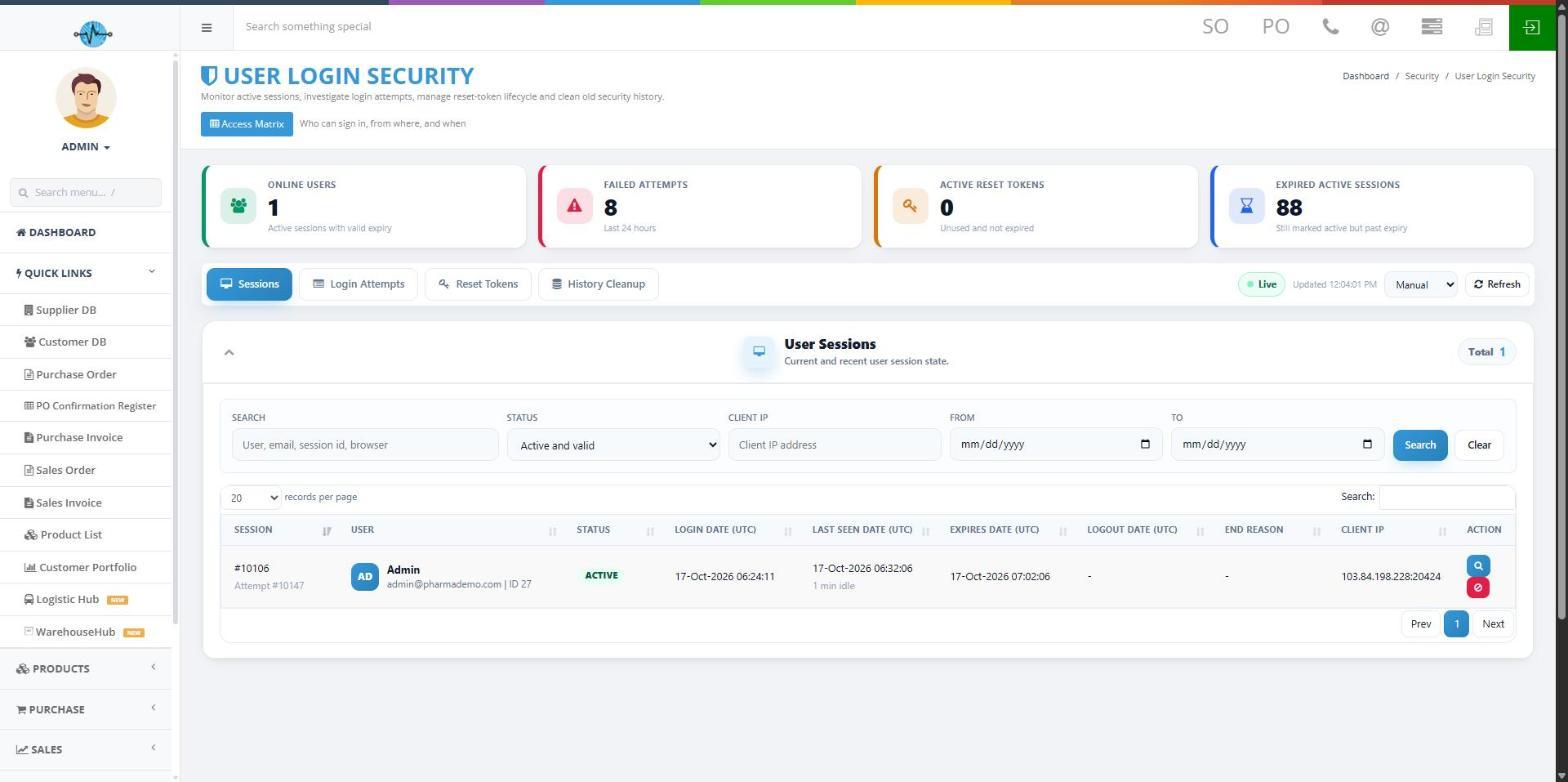
Open System Settings, then Security & Logs, then Login Security. The top of the page shows four counters: Online users, Failed attempts (last 24 hours), Active reset tokens and Expired active sessions. Below them are four tabs:
| Tab | What it shows |
|---|---|
| Sessions | Current and recent sign-in sessions. Filter by user, email, session ID or browser, by status (it starts on "Active and valid"), by client IP and by date |
| Login Attempts | Sign-in attempts, including failed ones |
| Reset Tokens | Password reset tokens that have been issued |
| History Cleanup | Removing old security history |
The Access Matrix button ("Who can sign in, from where and when") gives an overview of access rules. A Refresh button and a refresh-rate box (Manual by default) update the page. Times on this page are in UTC.
View/Update Hash Key
Open System Settings, then Security & Logs, then View/Update Hash Key. A box titled Company Setting Hash Key opens. Copy the key and share it with the customer so that Sales Orders can be created automatically. The box also shows the Central DB AccountID and an Update Hash Key button. Do not click Update unless you have been told to, because what it changes for the customer is not yet described (see the end of this guide).
Error Log
Open System Settings, then Security & Logs, then Error Log. It collects application errors and key events. All times are in UTC.
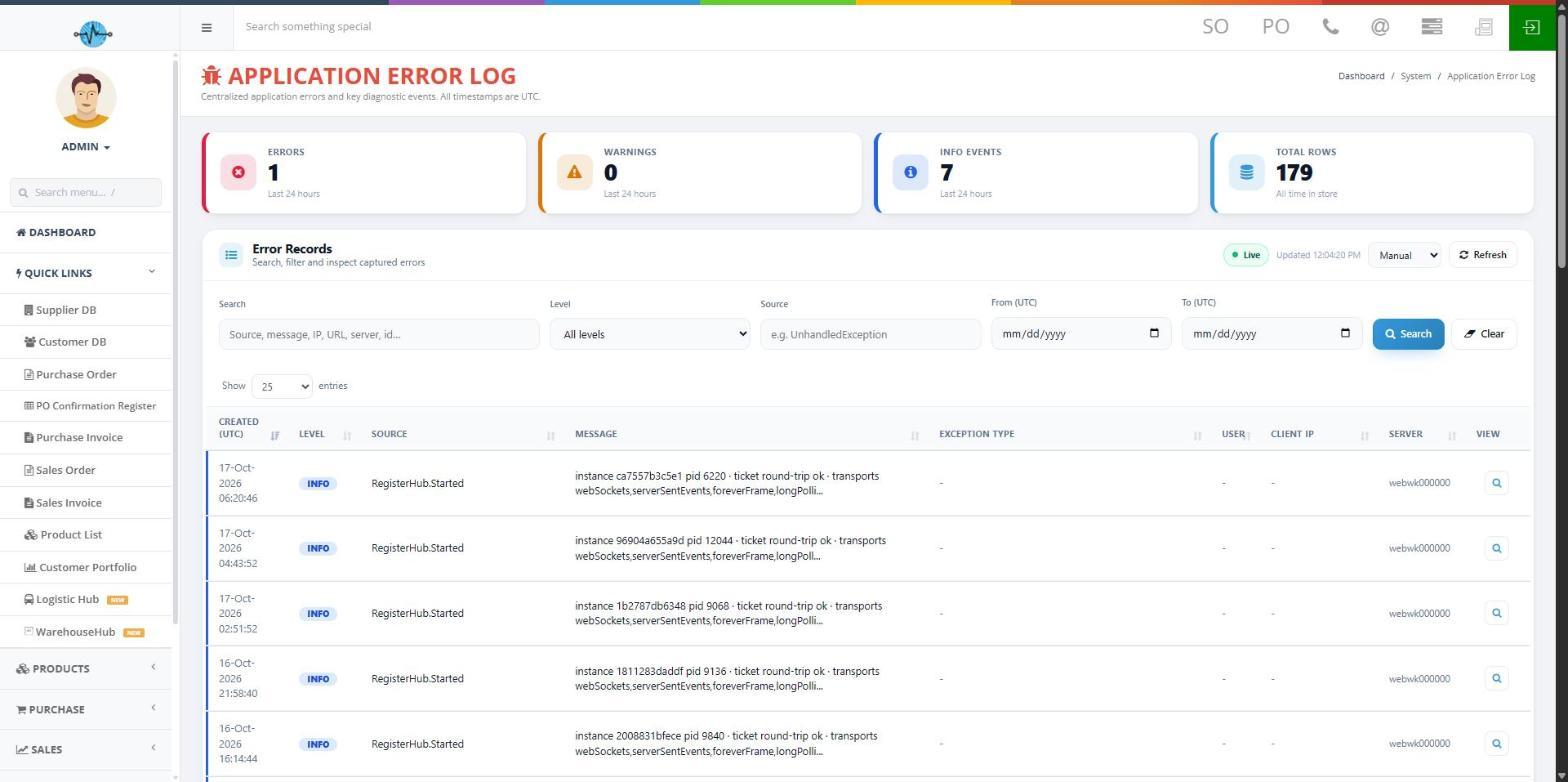
- Four counters at the top: Errors, Warnings, Info events (last 24 hours) and Total rows (all time).
- The refresh box offers Live, Manual, Every 30s and Every 60s and there is a Refresh button.
- Filters: Search, Level (ERROR, WARN or INFO), Source and a From and To date. Click Search to apply them and Clear to reset.
- The table shows Created (UTC), Level, Source, Message, Exception Type, User, Client IP, Server and a View button for the details. You can show 25, 50, 100 or 200 rows.
History Cleanup: type the number of days to keep in Retention days, then click Preview to see what would be removed. Run Cleanup permanently deletes error rows older than that, so always preview first.
Countries and Currencies
Open System Settings, then Master Data, then Countries or Currencies. These lists are used on customers, suppliers, addresses, documents and bank accounts. Every change is kept in a history (Country History or Currency History).
| Screen | Columns | Buttons |
|---|---|---|
| Countries | Country, Code, Currency, VAT %, Last Changed, Changed By, Options | Add Country, Country History, Refresh |
| Currencies | Code, Symbol, Last Changed, Changed By, Options | Add Currency, Currency History, Refresh |
A country or currency that is already used elsewhere in the system cannot be deleted.