3. Roles: deciding what each person can do
A role is a set of permissions. It decides which screens a person can open and what they can do on them. You can name a role anything you like. What counts is the permissions you tick inside it.
Who can do this: an Admin, a Super Admin or someone whose role allows managing System users.
Open the role list
- Sign in as the Super Admin.
- Open System Settings.
- Open Roles & Access.
- Click List Roles.
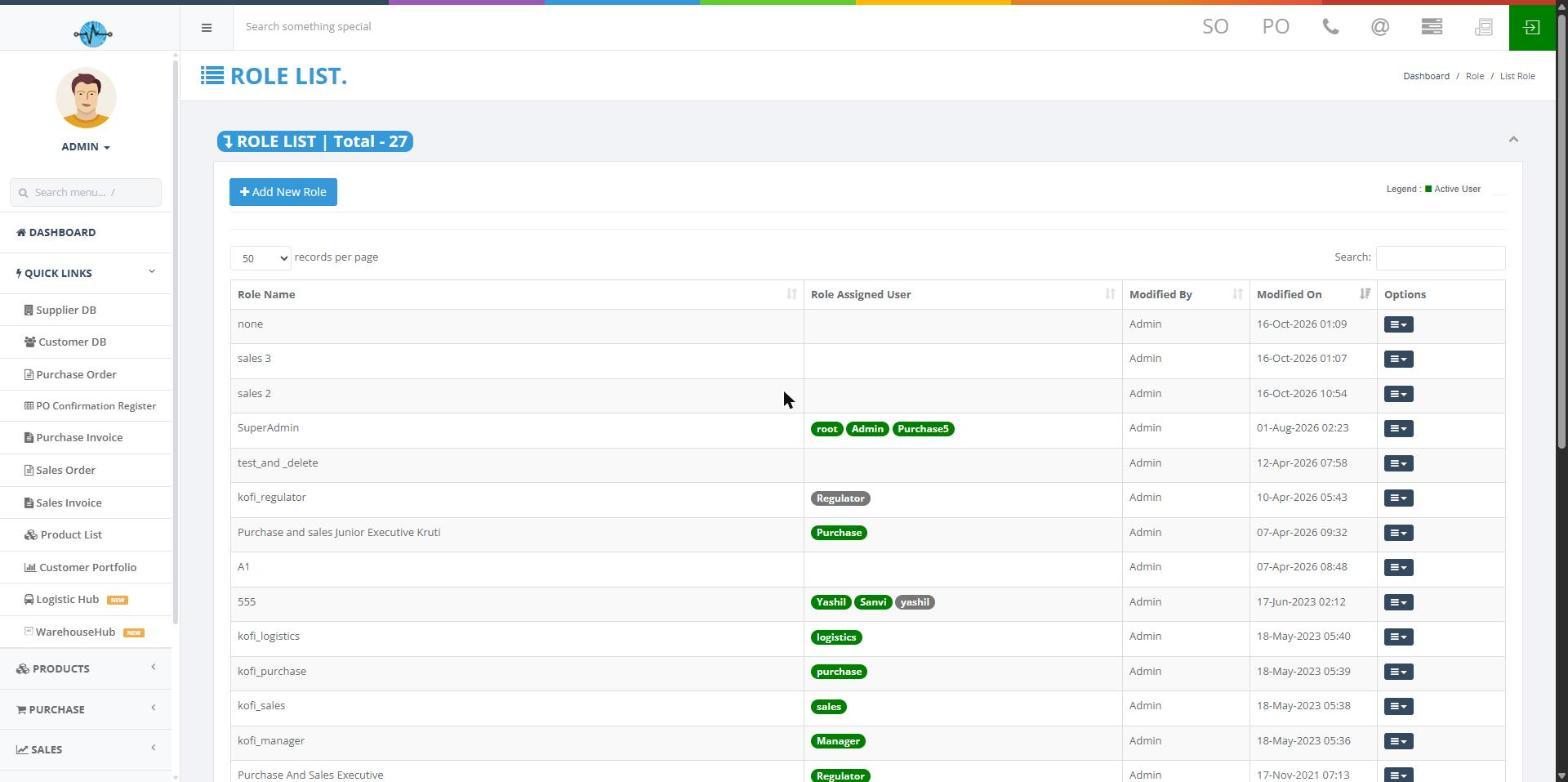
You see all existing roles. Click Add New Role to make one. The list shows:
| Column | What it tells you |
|---|---|
| Role Name | The name of the role |
| Role Assigned User | The people who hold the role, shown as green badges. A role nobody holds has an empty box |
| Modified By | Who last changed the role |
| Modified On | When it last changed. The newest changes are at the top |
| Options | A menu with Edit and Delete |
The title shows the total number of roles. Use Search, records per page (10, 20, 50 or 100) and Prev / Next to find a role.
Create a new role
- Click Add New Role.
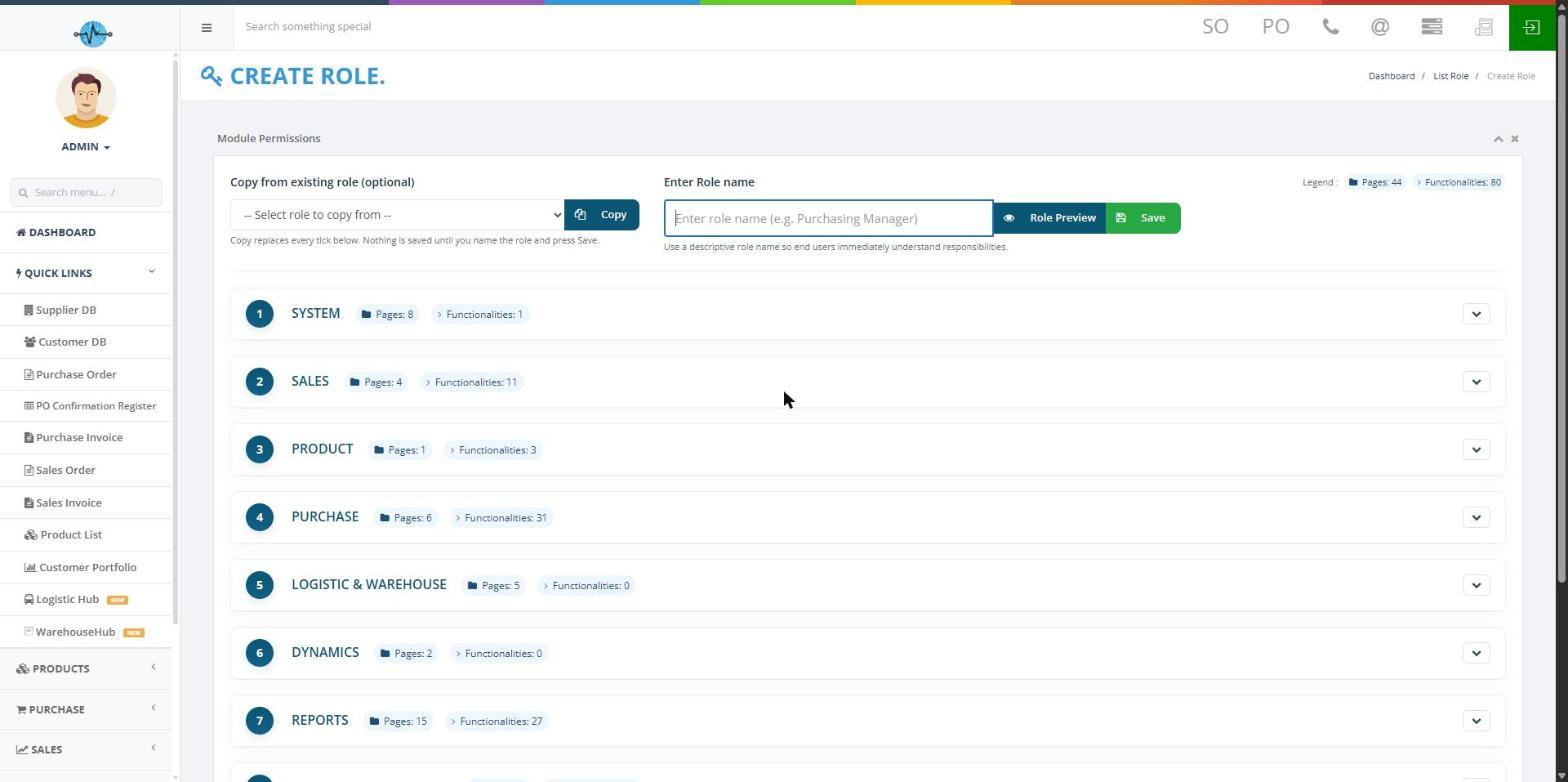
- Type a name in Enter Role name.
- Open the sections (modules) you need.
- Set the permissions for each page and the extra settings (see below).
- Optional: click Role Preview to look over the role.
- Click Save.
Create a role by copying another one
This saves time when the new role is similar to an existing one.
- Click Add New Role.
- Under Copy from existing role, pick a role (optional).
- Click Copy.
- Type the new role name.
- Check the copied permissions and change any you do not want.
- Click Save.
Copy replaces whatever is currently ticked on the form. Nothing is saved until you type a name and click Save.
How permissions are organised
Permissions go from big to small: Module, then Page, then Functionality. The modules are System, Sales, Product, Purchase, Logistic & Warehouse, Dynamics, Reports, Generic Functionality, Finance and Regulatory.
For each page, tick or clear:
| Setting | What it lets the person do |
|---|---|
| IsView | See records |
| IsCreate | Add new records |
| IsUpdate | Change records |
| IsDelete | Remove records |
Some pages also have extra Yes/No settings for particular actions. For example, Sales, then Sales Order has settings for changing the order status and changing the person it is assigned to. Choose Yes to allow the action or No to block it.
Edit a role
- Open System Settings, then Roles & Access, then List Roles.
- Find the role and open its Options menu.
- Click Edit.
- Open the modules and pages you want to change.
- Tick or clear the page permissions and set the extra settings to Yes or No.
- Click Save.
Delete a role
- Open System Settings, then Roles & Access, then List Roles.
- Find the role and open its Options menu.
- Click Delete.
- A confirmation box asks "Are you sure to delete this Role?". Click OK to confirm or Cancel to keep the role.
The role is then deleted. What happens to people who already have that role is not yet described. See "Still to be confirmed" at the end.