2. Setting up a new Member:
Administrators do this work in System Settings in the left side menu. Set things up in this order, because each step depends on the one before it.
- Create or choose a role. The role must exist before you can give it to someone. See Part 3.
- Prepare location and shift, if needed. Only needed when you want to limit where or when the person can sign in. See Parts 4 and 5.
- Add the person. Fill in their details, choose the role, add location and shift if needed, then save. See Part 6.
- Check their first sign-in. Make sure they land on the Dashboard and see the right menu items. See Part 1.
Where to find each screen
Open System Settings in the left side menu. It is split into groups: Company, Members, Roles & Access, Security & Logs and Master Data. Pick:
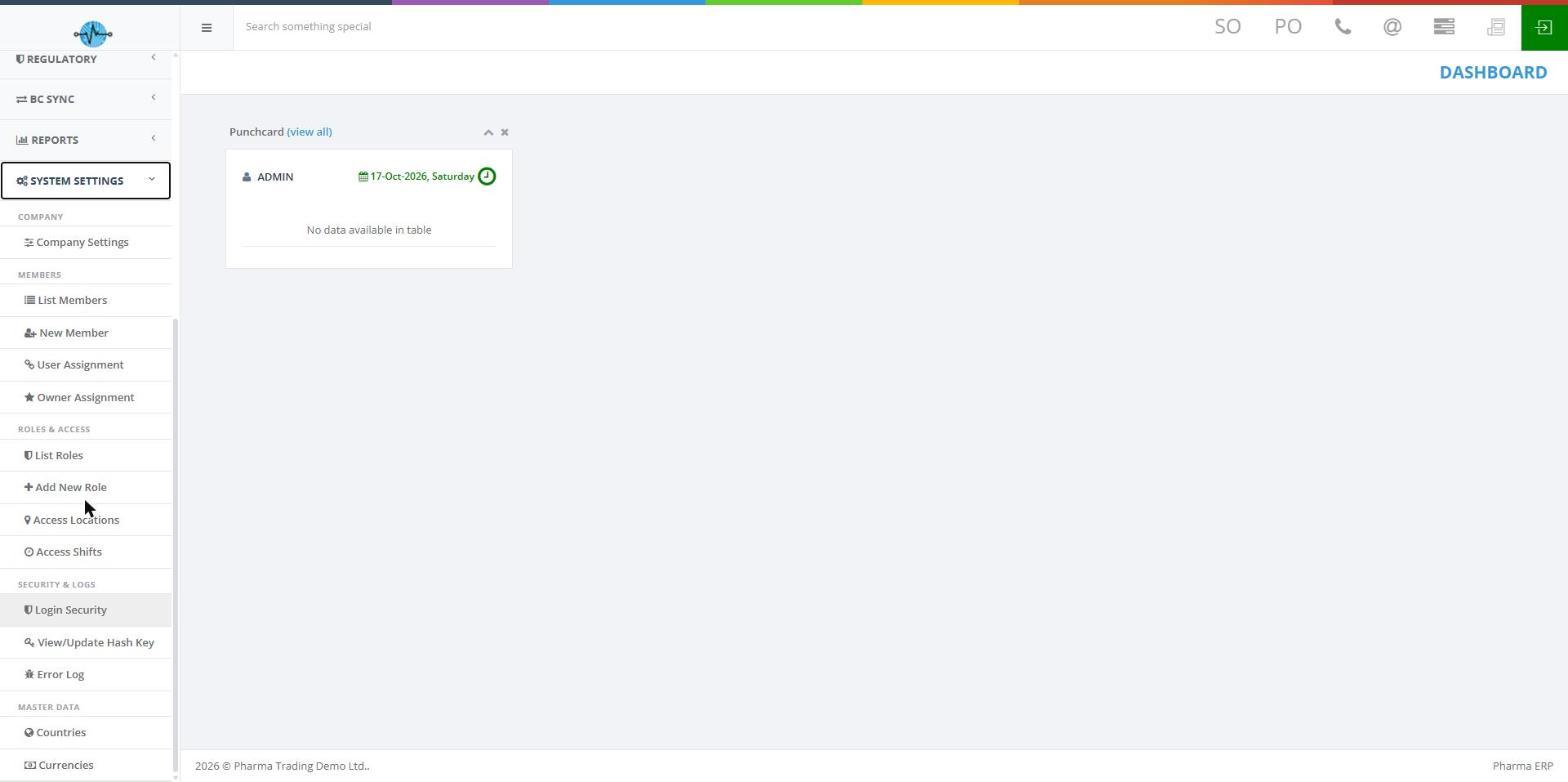
| To do this | Click |
|---|---|
| See existing people and their account actions | Members, then List Members |
| Add a new person | New Member (or Add New User on the user list) |
| See and manage roles | Roles & Access, then List Roles (and Add New Role to create one) |
| Manage the internet addresses and time zone of a site | Roles & Access, then Access Locations |
| Manage working days and hours | Roles & Access, then Access Shifts |
| View or change company-wide settings | Company, then Company Settings (see Part 9) |
| Assign customers or suppliers to a person | Members, then User Assignment or Owner Assignment (see Part 9) |
| Check who is signed in and sign-in attempts | Security & Logs, then Login Security (see Part 9) |
| See the company hash key | Security & Logs, then View/Update Hash Key (see Part 9) |
| Look at application errors | Security & Logs, then Error Log (see Part 9) |
| Manage the list of countries or currencies | Master Data, then Countries or Currencies (see Part 9) |
Do you need a location and a shift?
When you add a person, you choose two Yes/No switches:
- IP Access. Yes means the person can sign in only from approved internet addresses, such as the office network.
- Time Access. Yes means the person can sign in only during their working hours.
Your two answers decide what to prepare first:
| IP Access | Time Access | What to prepare before adding the person |
|---|---|---|
| Yes | No | An active location with its internet (IP) addresses |
| No | Yes | A location with the right time zone and a shift to assign |
| Yes | Yes | An active location with its IP addresses and a shift to assign |
| No | No | Nothing. The person can sign in from anywhere, at any time |